
Try these steps:
Refresh the Payments page.
Make sure you authorized the correct Squarespace site.
Check that you have admin permissions on the Squarespace site.
If the issue persists, disconnect and reconnect the site.
Eventually integrates with your Squarespace site to enable native checkout and event management. When you connect your site, attendees can browse events and purchase tickets without leaving your website. Checkout happens through Squarespace Commerce.
Connecting your site does not install the Eventually Squarespace extension. The extension is a separate install that lets your primary calendar take over one page of your site; after installing it, you finish setup on the Calendars page and enter the address of a page you created. See Install the Eventually Squarespace extension.
Make sure you have:
A Squarespace site with Commerce enabled
Admin access to the Squarespace site you want to connect
Squarespace Payments configured (or Stripe, if you prefer)
Eventually uses your existing Squarespace Commerce setup for payment processing. Standard Squarespace payment processing fees apply to each transaction. Eventually charges a flat monthly subscription; there are no per-ticket fees from Eventually.
The fastest path during first-run setup is the optional checkout card on the setup panel.
On your dashboard, find the setup panel. If the setup drawer is open, click Collapse setup first.
When a paid published event needs checkout, find the Connect your checkout card and click Connect Squarespace.
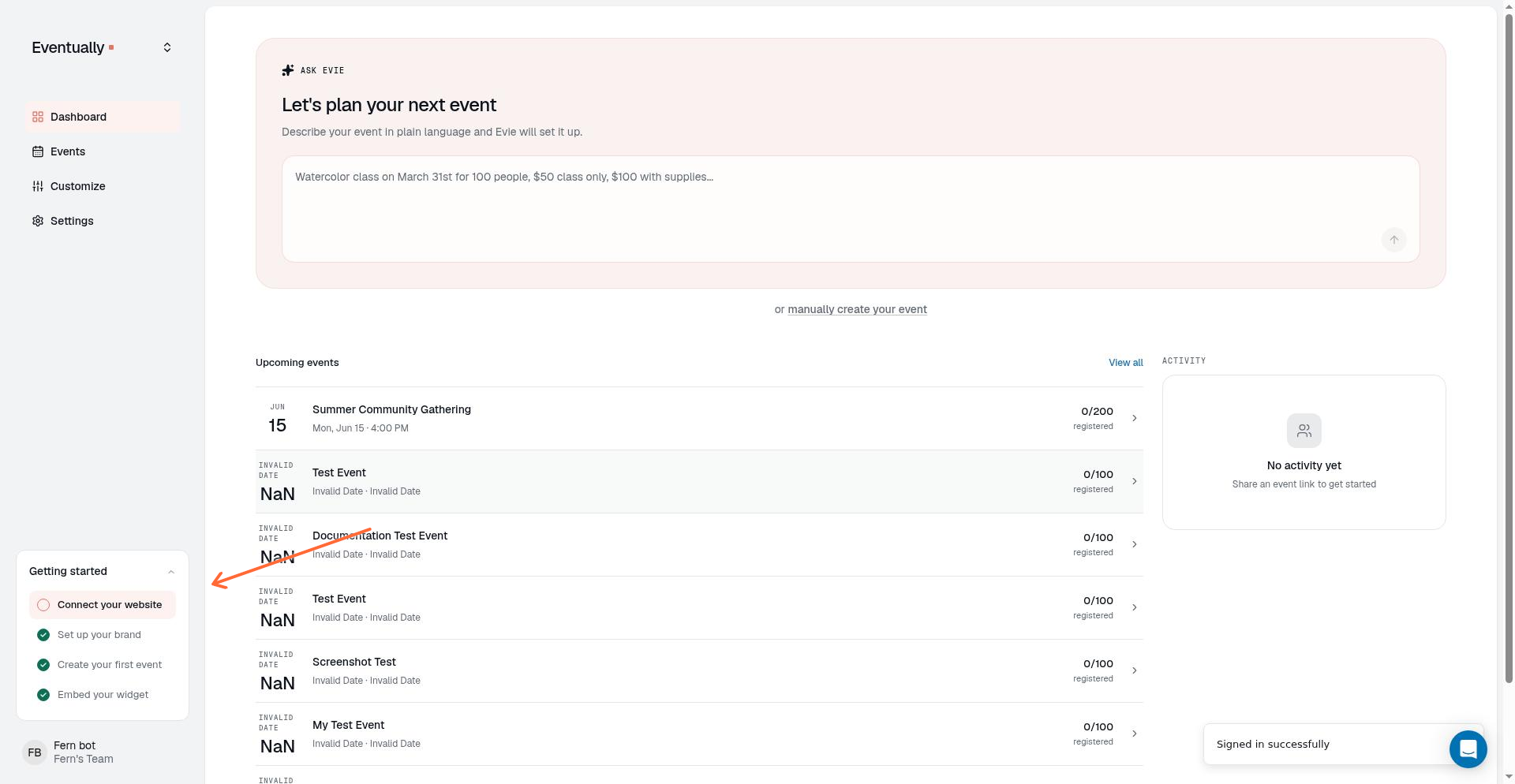
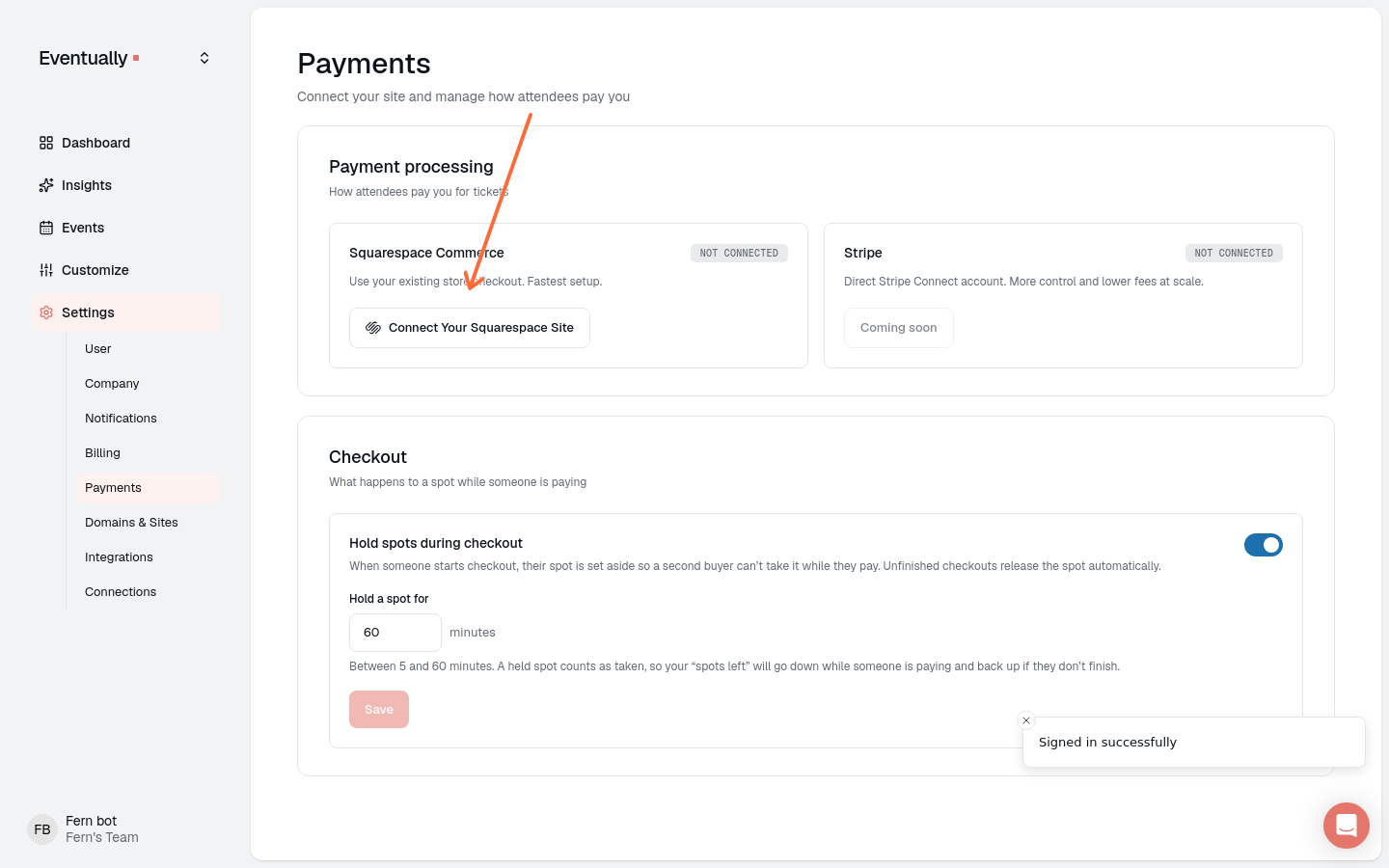
You can also connect from the settings page:
Go to Settings → Payments in the left sidebar.
Under Payment processing, find Squarespace Commerce.
Click Connect Your Squarespace Site.
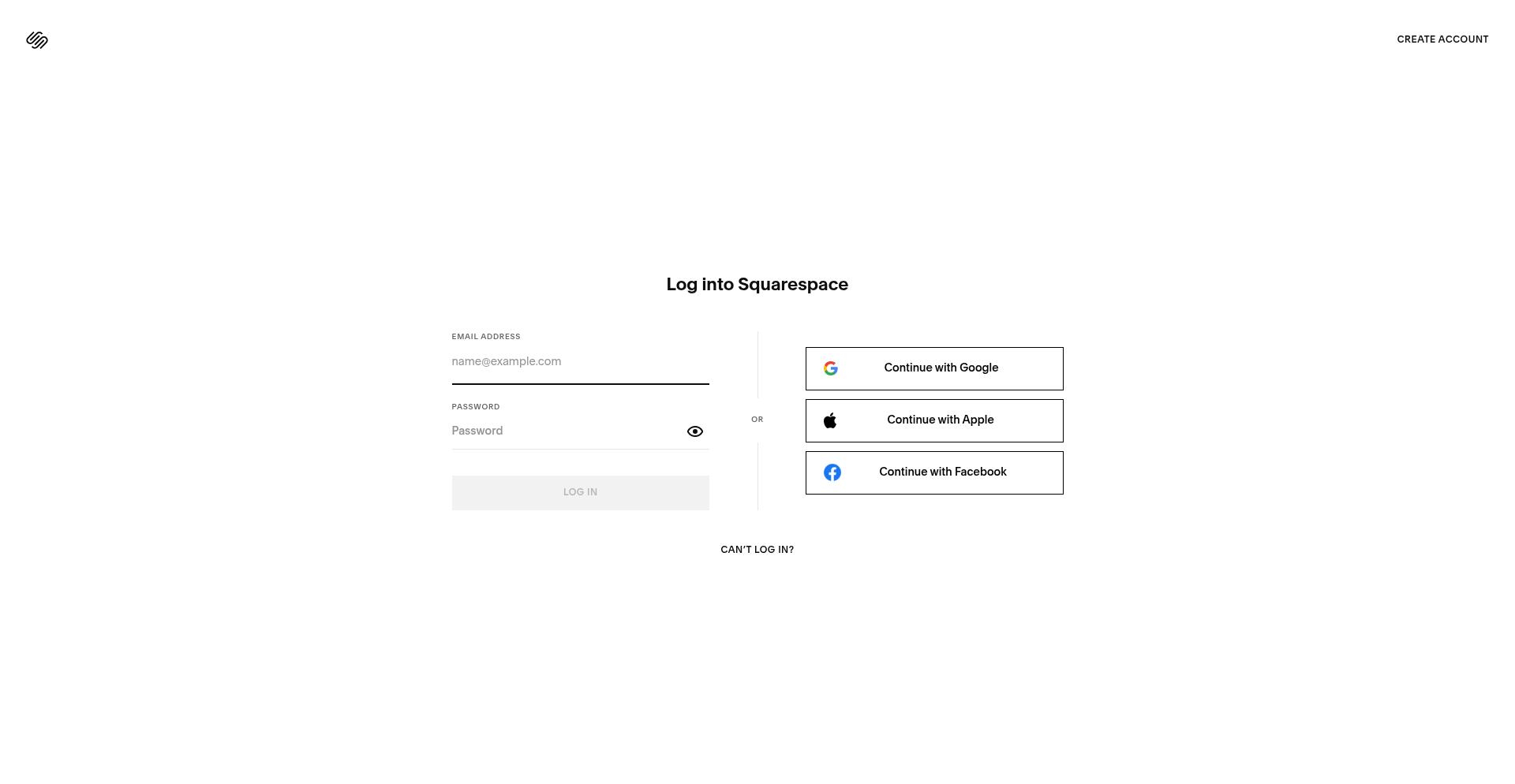
After clicking connect, you'll be redirected to Squarespace to authorize the integration.
Log in to your Squarespace account if prompted.
Select the site you want to connect.
Review the permissions and click Allow to authorize Eventually.
Once authorized, you'll be redirected back to Eventually and your site will appear as connected. Where you land depends on where you started connect:
New-event creator: You return to the creator with your in-progress event restored. Connecting does not publish the event; click Publish event again when you are ready.
Existing event editor: Eventually saves your current edits as a draft before leaving (the button shows Saving your event…), then returns you to that event after authorization. If the save fails, you stay in the editor and see Something went wrong saving. Please try again. instead of leaving for Squarespace.
First-run setup: You return to the same onboarding step you left: brand, share, or the dashboard setup flow.
Settings or an unrecognized return: You land on Settings → Payments.
Event creator and editor returns work for established sellers as well as first-run accounts. Connecting checkout never publishes the event by itself.
Connecting your Squarespace site allows Eventually to:
Process payments through Squarespace Commerce: Attendees checkout on your site using your existing payment setup.
Embed the calendar widget: Display your events on any Squarespace page.
Match your site's design: The calendar widget inherits your Squarespace theme automatically.
Keep attendees on your site: No redirects to third-party ticketing pages.
Price tickets in your store's currency: Eventually uses the connected Squarespace store's configured currency for ticket pricing and paid sales, and aligns your team's display currency to match. The Event Defaults currency control can't override a connected store.
You can still finish a paid event before checkout is connected. When you click Publish event on a paid Eventually-registration event without a connected store, Eventually opens To sell tickets, connect your Squarespace store with three choices:
Connect Squarespace: Authorize checkout, then return to the event with your work intact. Connecting does not publish the event; publish again after you return.
Keep it free: Publish the event with free tickets instead.
continue — sales open when you connect: Publish now. Buyers see Sales open soon until checkout is connected.
Until the site is connected:
Buyers see a disabled Sales open soon control for paid Eventually events on the widget and hosted event page.
After first-run setup is no longer active, sellers can see a site-wide banner: Connect your checkout to start selling. with body Your ticketed events show “Sales open soon” until your Squarespace checkout is connected. Owners and admins get Connect checkout; other members see the warning only. During active first-run setup, that banner stays hidden because the setup drawer and panel already surface the connect prompt.
After first paid publish, brand setup can show a dismissible Connect your checkout to start selling prompt with Connect checkout or I’ll do it later.
Free, RSVP, and external-registration events are unaffected.
Connect from the checkout gate, the setup panel card, the banner (when shown), the setup prompt, or the steps above. For buyer symptoms after go-live, see Common checkout issues and solutions.
Events that were already published before you connected your Squarespace site are automatically synced to your store. You do not need to republish or reconnect to backfill them.
After connecting, your site appears in the Squarespace Commerce section of the Payments page. You can:
View connected sites: See which Squarespace sites are linked to your Eventually account.
Disconnect sites: Remove a site connection if needed (see Connecting and disconnecting sites).
If you manage multiple Squarespace sites, you can connect more than one to your Eventually account. This is useful for agencies or businesses with separate sites for different locations or brands.
On windows narrower than 1024px, the left sidebar collapses into a hamburger menu on every page, including Settings. Open the menu to reach Payments.
Try these steps:
Refresh the Payments page.
Make sure you authorized the correct Squarespace site.
Check that you have admin permissions on the Squarespace site.
If the issue persists, disconnect and reconnect the site.
If the connection status shows "NOT CONNECTED" after you complete the authorization flow:
Cookies or browser settings may have blocked the redirect. Try using an incognito/private window.
Ensure you completed the entire authorization flow without closing the window.
Clear your browser cache and try again.
Install and connect the Eventually panel in Squarespace: A separate setup that adds an admin panel for managing events from inside Squarespace admin
Install the Eventually Squarespace extension: A separate install that puts your primary calendar on one page of your site
Set up your calendar widget: Add your event calendar to any Squarespace page
Quick start guide: Create your first event and configure attendee registration
Finish setup on your dashboard: Dashboard drawer and panel setup after first publish
Import events from a CSV file: Migrate existing events from another platform