
Edit an event
When you save an occurrence of a recurring event from the drawer, you're asked to choose whether to apply your changes to This event, This and following events, or All events. The drawer defaults to This and following events. Standalone events and series roots save without this question. See Creating recurring events for details on edit scopes.
For editable events, you can update details from the event detail page. Open an event to modify the title, description, schedule, location, categories, tags, and more. Cancelled events can't be edited.
Open the event editor
Navigate to Events in your Eventually dashboard.
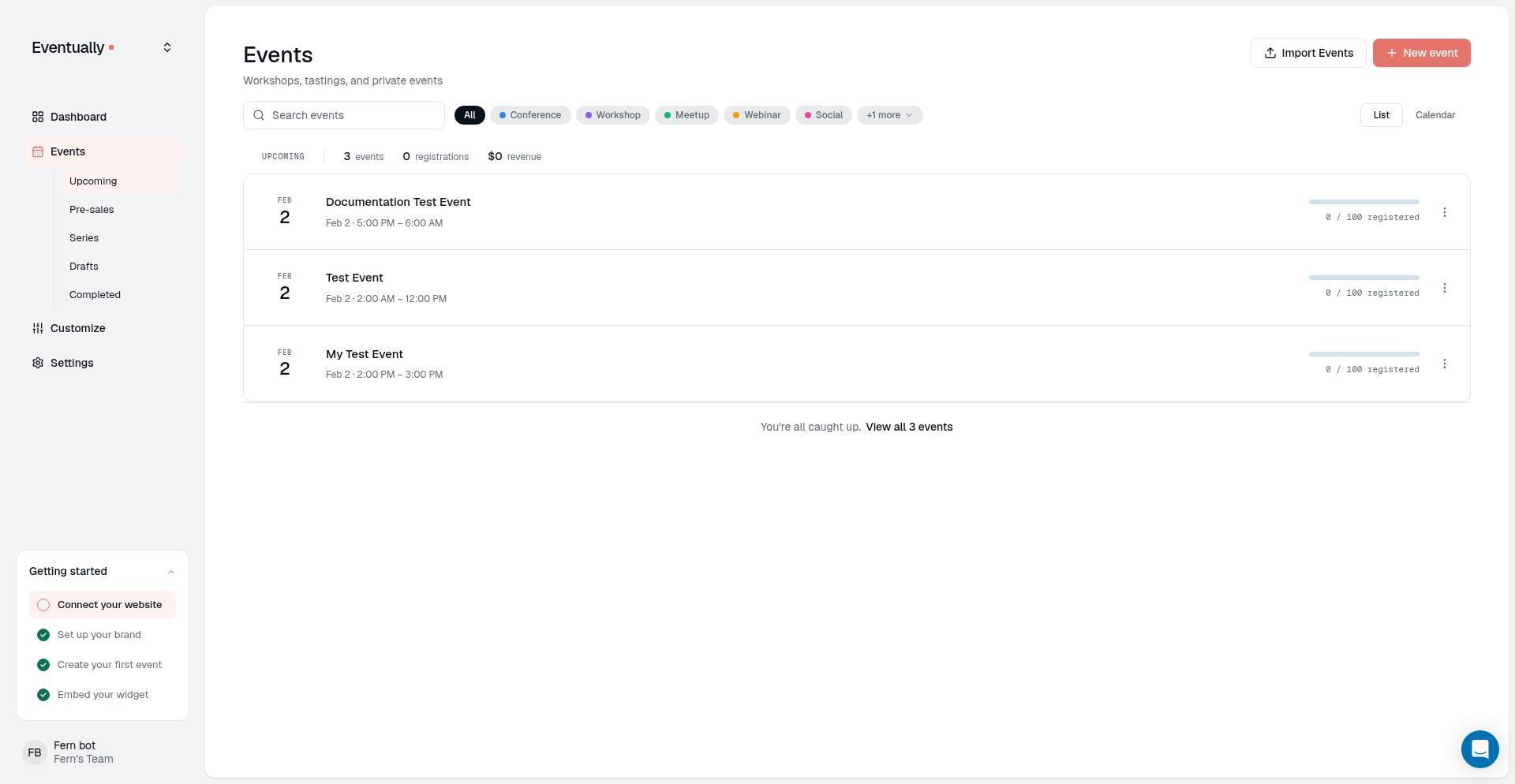
Click the event you want to edit.
On the event detail page, click the Edit button (pencil icon) to open the editor drawer.
The editor opens as a drawer on the right side of your screen with the title Edit event.
Edit event details
Inside the editor drawer, you can modify:
Title: The event name displayed on your calendar widget.
Description: The full event details shown to visitors.
Start and End: The event date and time. The time zone is used on the public event page, calendar widget, and in attendee emails. See Date, time, timezone, and location autocomplete for details.
Location: Where the event takes place.
Categories: Organize events into groups for filtering.
Tags: Additional labels for internal organization.
Images: Add or remove event photos.
Check Always show the full description under the description editor to show visitors all of the description text, with no Read more toggle. The setting is off by default and applies to this event only.
Manage event categories
Categories help visitors filter your calendar by event type. You can add or remove categories from any event, or create new categories directly from the editor.
Add or remove categories
In the Categories section of the editor, you'll see category chips with colored dots indicating each category's color:
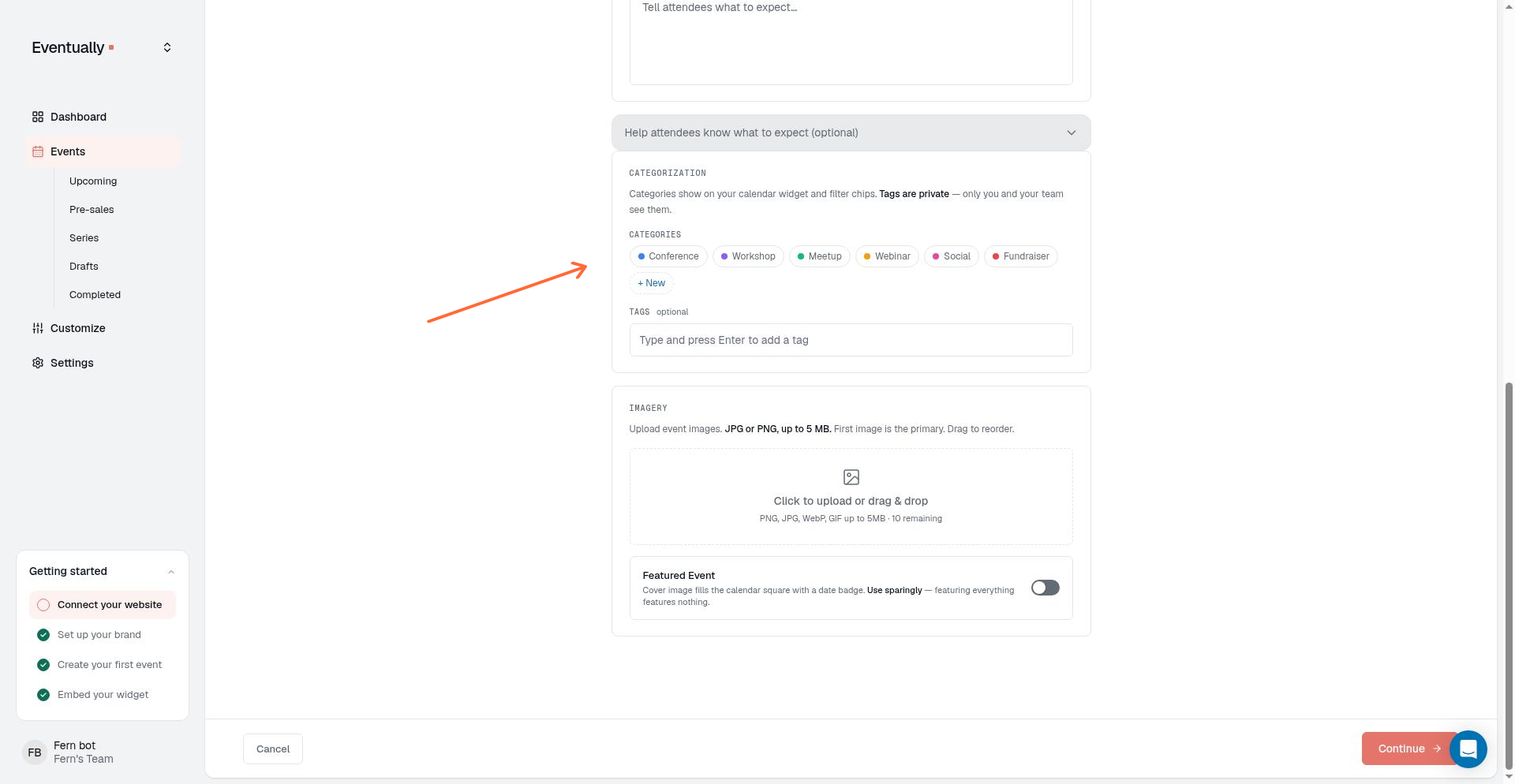
Click any category chip to select it. A selected category shows a checkmark.
Click a selected category chip to deselect it and remove it from the event.
Create a new category
You can create a new category without leaving the event editor:
Click + New next to the category chips.
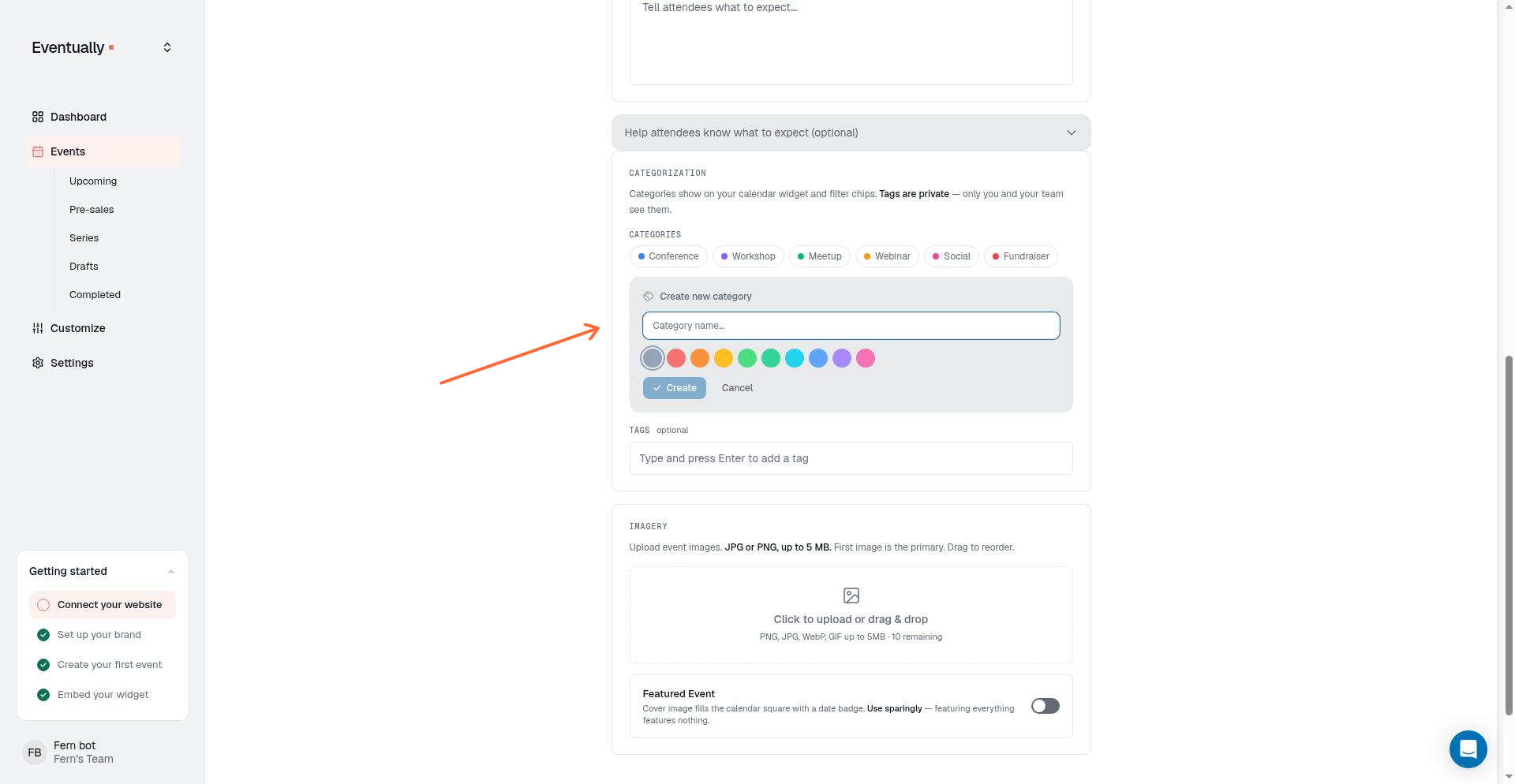
Enter a category name in the text field.
Select a color from the swatch palette.
Click Create.
The new category is added to your account and automatically selected for this event. You can deselect it if you don't want to apply it.
Creating a category here adds it to your account-wide category list. The category becomes available for all future events, not just the one you're editing.
Save your changes
After making changes:
Click Save changes at the bottom of the drawer.
The button changes to Saving... while your updates are submitted.
Once saved, the drawer closes and your changes appear on the event detail page.
If there's an error, the drawer stays open and displays an error message. Fix the issue and try saving again.
Saving is also refused when the event changed after the editor opened, for example in another tab or through another update. No changes are written. A dialog titled This event changed names the fields that changed. Choose Keep editing to keep your typed text so you can copy anything important, or Reload page to load the latest event, which clears the unsaved text in the editor. This safeguard also applies when you edit the scope of a recurring event.
Saving a recurring series
When your save covers more than one date of a recurring series, the series stays one series: This and following events updates the selected date and every later date in place, and attendees and tickets stay with their dates. Earlier dates keep their original details.
Changing the repeating pattern adds a later schedule rule to the same series instead of splitting it. Each date follows the rule that governs it, and the Series tab and event page show the complete schedule. An occurrence's own event page shows its position in the series, such as Event 2 of 10. The public series page shows a cadence summary, such as "Every week, then every 2 weeks", and lists the upcoming dates.
If a schedule change would remove dates that have attendees, the save is refused before anything changes and a dialog shows This date has attendees or These dates have attendees. The dialog lists the dates leaving the series with their attendee counts and revenue. Confirm to keep those dates as standalone events that retain their attendees and tickets, or cancel to leave the series unchanged. If a date in the list is booked before you confirm, the confirmation appears again with the updated list.
Schedule changes also restrict the edit scopes:
This event is unavailable when your save changes the pattern. The dialog shows the reason: "A pattern change applies to this and later events, or all events."
All events is unavailable on any date that comes after a schedule change. The dialog shows the reason: "Not available on a date after a schedule change. Use All events from an earlier date." To change every date, open the series' first date, or the first date under an earlier rule, and choose All events there.
To update details shared across the whole series, such as the description, images, tickets, or registration questions, use the series editor instead. It applies changes to all events or from a chosen date onward. See Edit details for an Event Series.
Related guides
Create an event: Build a new event from scratch
Creating recurring events: Set up repeating schedules for classes and workshops
Import events from a CSV file: Bulk import events from another platform
Set up your calendar widget: Configure category filters for visitors
Choose when to collect attendee details: Control when guests fill out registration fields
Edit details for an Event Series: update the details every date in a series shares