
Set up a pre-sale for your events
Pre-sales let you schedule ticket sales in advance and offer early access to select audiences. You can protect early access with a code, control when events become visible to visitors, and show clear messaging before tickets go on sale.
How pre-sales work
A pre-sale applies to all events sharing a tag. You control three timing windows:
Visible at: when events in the tag first appear in your calendar widget. Before this time, visitors won't see them.
Early access starts: when select visitors can purchase tickets before general sale. You can protect this window with an access code.
Public on-sale: when tickets are available to everyone.
Visitors see different messaging depending on the current state: an unlock prompt during early access if you use an access code, and normal purchase options once public on-sale begins.
A pre-sale access code can also be shared as a direct link. Use the same link format as ticket-type access codes (see Set up access codes for ticket types): the code is applied automatically at the early-access prompt, so recipients don't have to type it.
Create a pre-sale
Only owners and admins can create, edit, or delete pre-sales.
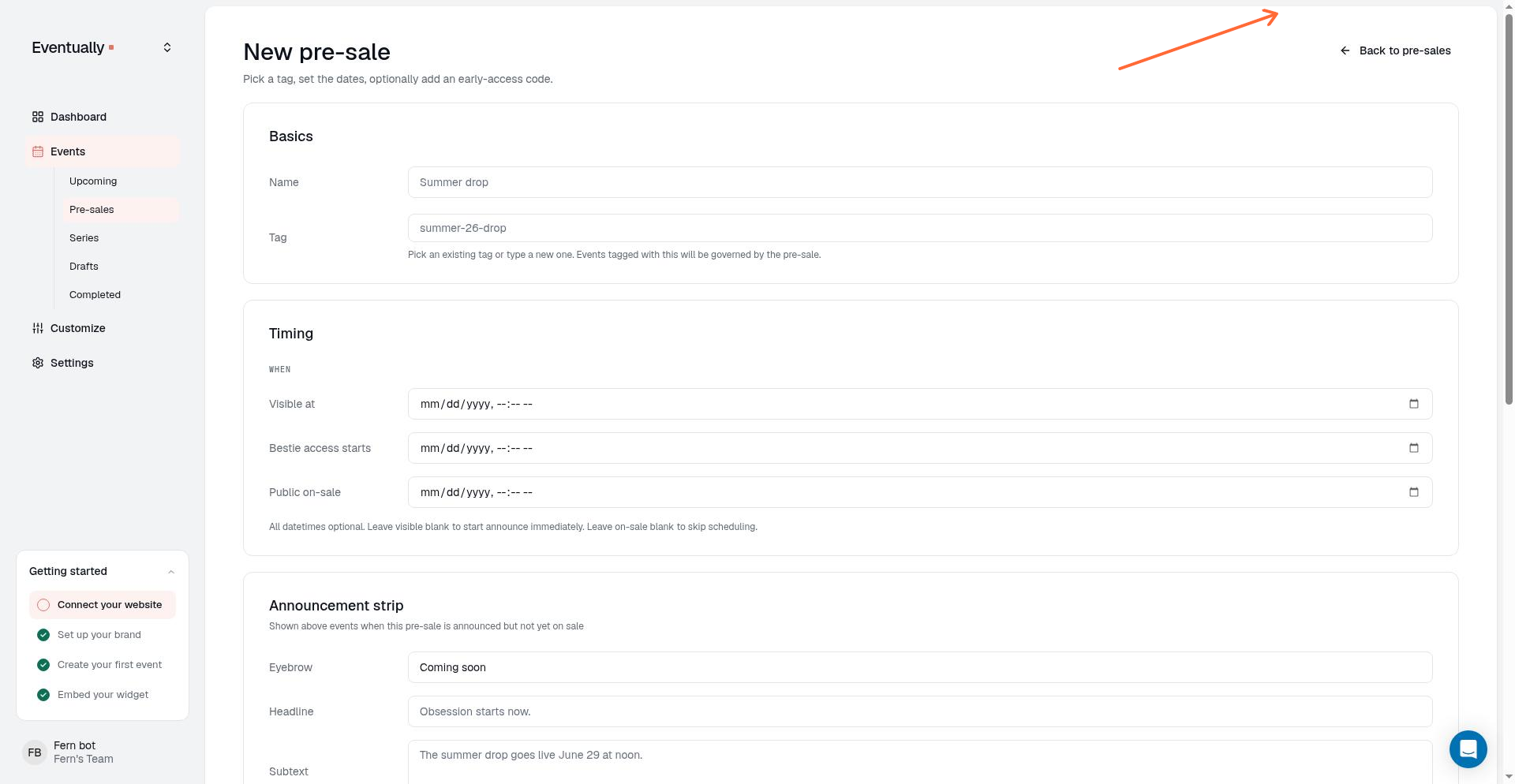
In the sidebar, open Events → Pre-sales.
Click New pre-sale.
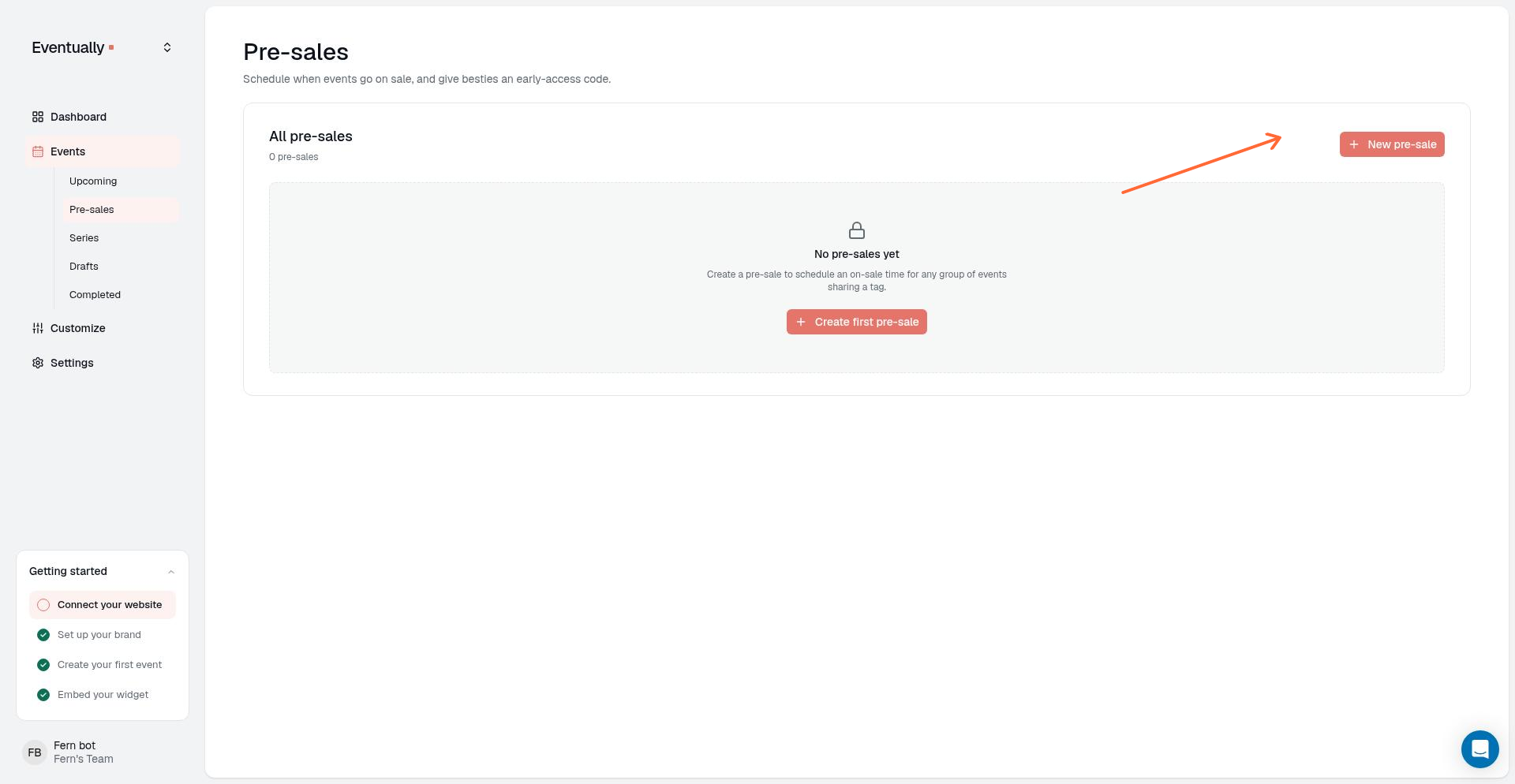
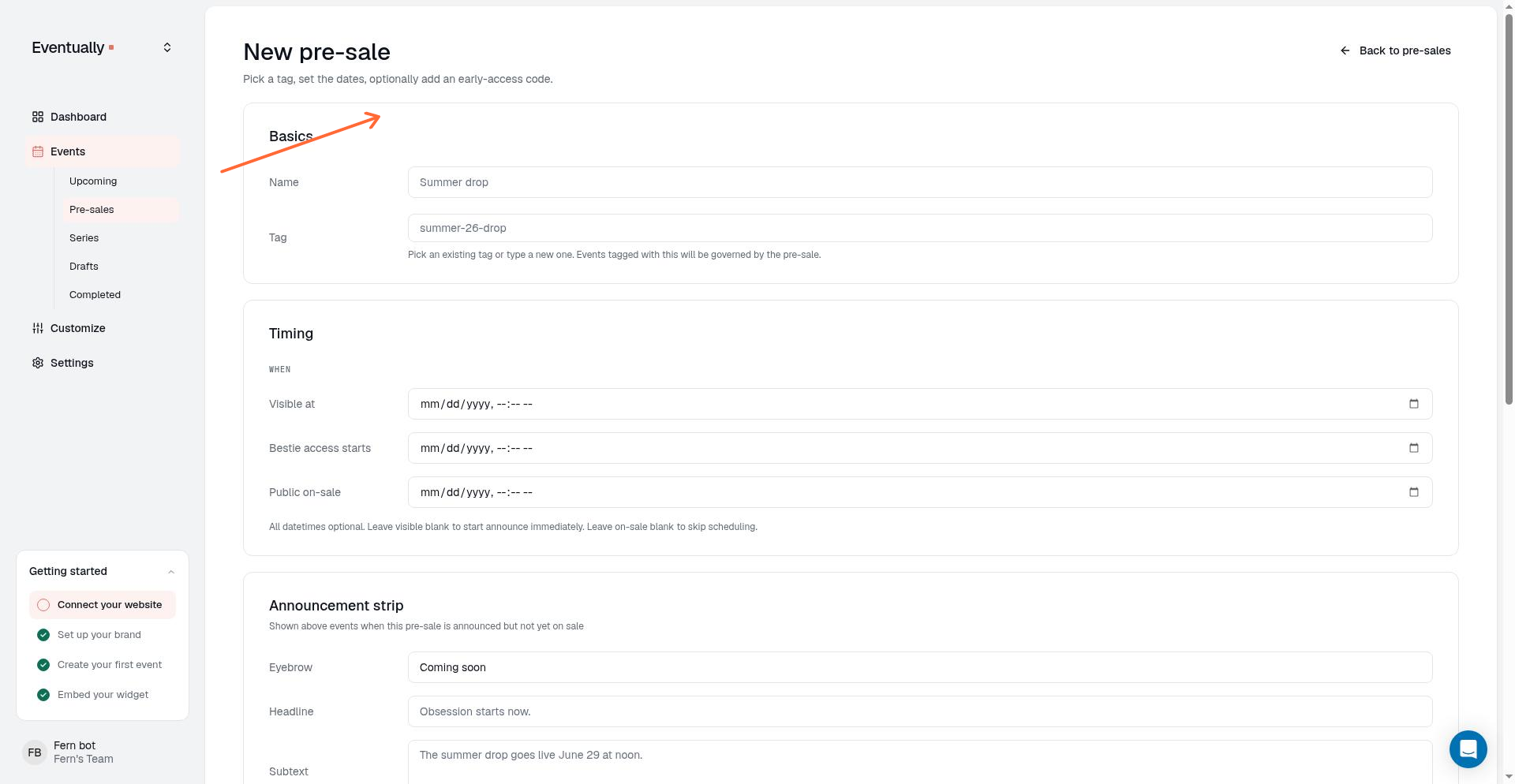
In the Basics section, enter a name for your pre-sale and choose the tag it applies to. All events with this tag will follow the pre-sale schedule. You can pick an existing tag or type a new one.
Under Timing, set the scheduling windows:
Visible at: when events appear in your widget.
Early access starts: when early access begins.
Public on-sale: when tickets are available to all visitors.
The early-access fields appear only when early access is enabled for your plan. Without early access, the Timing section shows only Visible at and Public on-sale, and the Early access section with its access-code settings isn't shown.
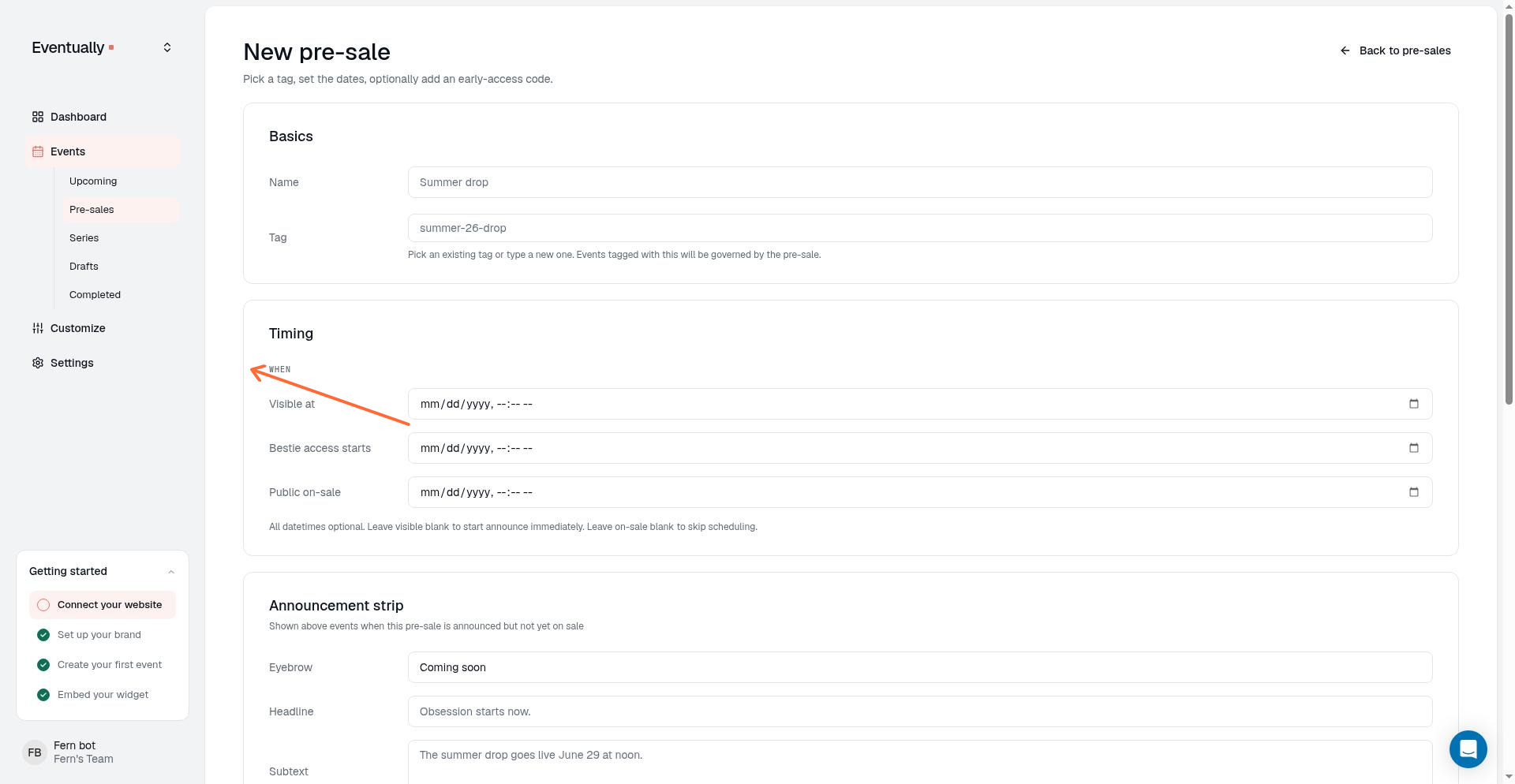
Pre-sale times use your team's time zone, not your browser's. The timing fields and the pre-sales list are read and written in your team's time zone, and the on-sale label shown in your host header and in the buyer's locked message displays a 12-hour time with the time-zone name.
If you want to restrict early access, scroll to the Early access section and enter an Access code. Visitors will need this code to purchase tickets before public on-sale.
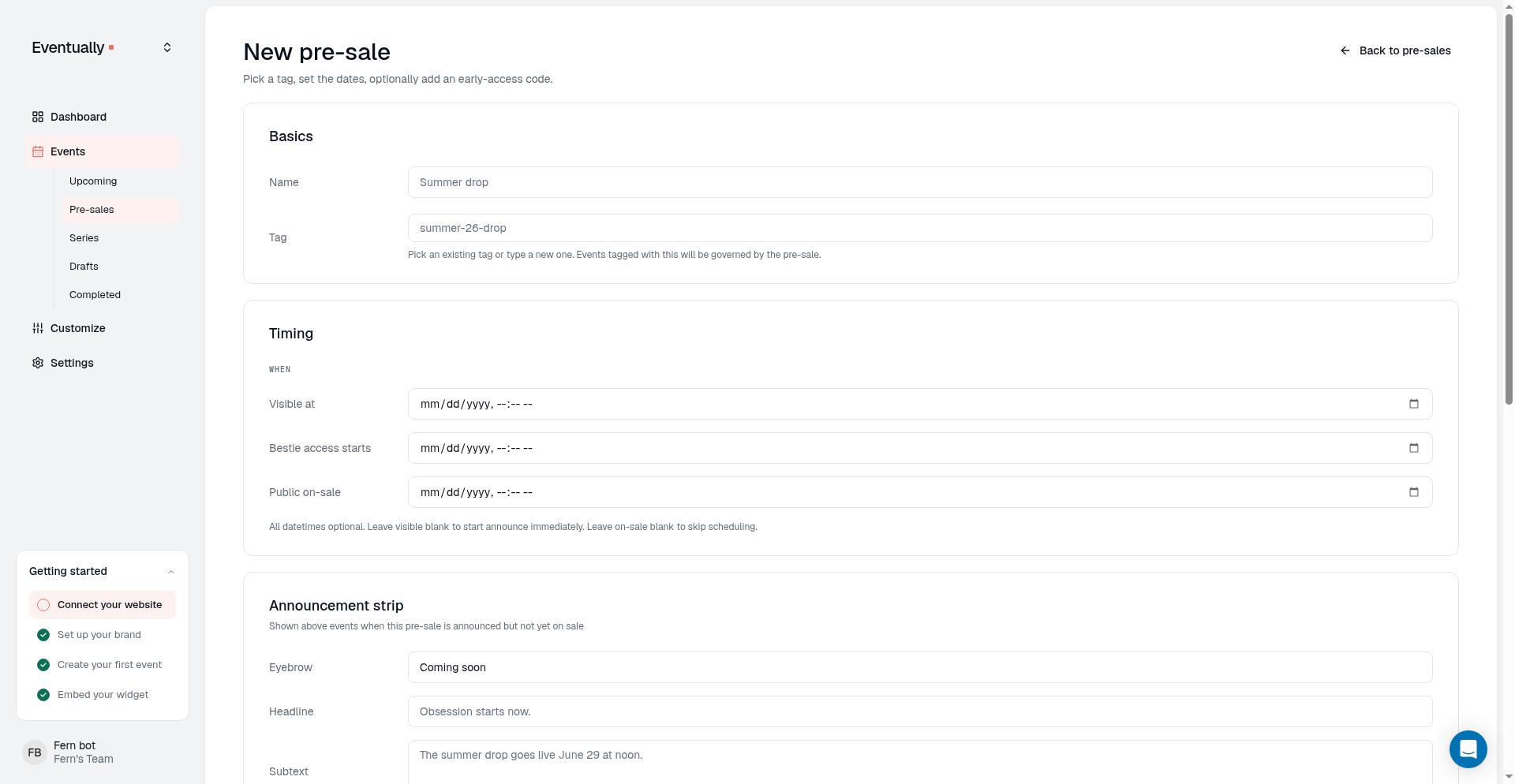
Under State, click Mark active. A new pre-sale starts as a draft, and a draft does not gate any events.
Click Create pre-sale to save.
What visitors see
The calendar widget displays different states for events in a pre-sale:
Before visible: events don't appear in the widget, and the pre-sale strip isn't shown. Both stay hidden until events become visible.
Between visible and early access: events appear in the widget and open to a read-only registration view that lists every available base ticket tier with its own name, price, and details. Visitors can't select quantities, purchase, or join a waitlist until the sale opens, and add-on tickets aren't shown in this locked view. The detail action shows "Coming soon" with the on-sale timing until early access begins. This locked action applies to external-registration events too, so no live Sign Up link appears before on-sale.
During early access (with code required): events appear with a prompt to enter an access code. Visitors who enter the correct code can purchase tickets.
During early access (no code): without an access code, events remain locked until public on-sale. A no-code configuration doesn't unlock early purchasing.
Public on-sale: events display normally with all purchase options available.
The pre-sale banner at the top of the widget uses a message area and an on-sale gate. During the final 24 hours before public on-sale, the gate shows a live countdown while keeping the absolute sale date and time beneath it.
Pre-sales apply to events by tag. If an event has multiple tags, it will follow the pre-sale schedule of any tag it belongs to.
Edit or remove a pre-sale
To change timing windows or the access code, go to Pre-sales and select the pre-sale to edit. Changes take effect immediately in your embedded widget.
To remove a pre-sale, delete it from the pre-sales list. Events in that tag will then be available for normal purchase immediately.
Preview pre-sale phases
The pre-sale edit page shows a Preview card that renders each phase as a visitor would see it. It updates live from your unsaved timing, access-code, and banner-copy settings, and uses your widget's brand color and custom CSS so the preview matches the live embed. The card appears only on plans that include pre-sales.
Choose a phase from the selector: Hidden, Announced, Early — locked, Early — unlocked, or Public. Reachable phases render event cards with their corresponding pre-sale treatment, including the “Coming soon” badge and locked call to action where applicable.
When a phase can’t occur under your current settings, the preview explains the missing requirement and shows no widget state for it. For example, an access code with no early-access start time can never produce a locked early-access phase, and the preview says so instead of rendering an impossible state.
The preview is for visual review only. Clicking previewed cards can’t save your form, open checkout, or register attendees: nothing you see there is saved until you save the pre-sale.
Next steps
Set up your calendar widget: embed your widget on Squarespace to display events.
Quick start guide: review the overall setup flow for events and checkout.
Create recurring events: set up classes or workshops that repeat on a schedule.