
Creating recurring events
For classes, workshops, tastings, or other repeating events, Eventually supports recurring schedules. Create one event template and let the system generate individual sessions automatically.
When to use recurring events
Recurring events work well for:
Weekly classes or workshops
Daily tours or tastings
Monthly meetings or performances
Multi-week course series
Each session appears separately on your calendar widget, and attendees register for individual dates.
Recurring events need the Essentials plan or higher. On the Free plan, choosing Recurring shows an upgrade prompt instead, while single events and multiple dates stay free.
Want to sell the whole run as one purchase? An Event Series will sell one series ticket that covers every session, with optional per-session drop-ins where capacity remains. This option is not available yet: in the schedule picker, Event series is disabled and marked Coming soon. See About Event Series.
Create a recurring series with Evie
You can start a recurring series from a plain-language Evie prompt when the description already sounds recurring, for example weekly classes or daily tours.
Evie may recognize the recurring intent in your prompt, but the schedule may still need to be completed in the editor before dates are generated or published. When that happens, review shows that the event needs a schedule, and you finish the schedule there.
Say how often it repeats and how it should end (a last date or a number of sessions).
Recurring schedules still need a valid end condition. We do not leave series open-ended in the editor.
If review still asks you to set the schedule, open Edit all the details and finish frequency, days, and end condition there.
For the full Evie create and review path, see Using Evie (AI) to create an event. The steps below cover the manual recurring controls in the event editor.
Setting up a recurring schedule
When creating or editing an event:
In the Date & time field, set the start and end of the first session.
Switch the field from Single to Recurring.
Under Repeats, pick Every week, Every 2 weeks, or Monthly on the same weekday position as your start date. These presets end after 12 sessions.
For any other pattern, or to change how the series ends, choose Custom schedule… (or click Edit series details under Repeats). In the Date & Time dialog, set Repeat every to a number of days, weeks, months, or years, pick the days under Repeat on, and set Ends to After a number of occurrences or On date.
Optionally exclude specific dates for holidays or breaks. Pre-filled numeric fields such as Repeat every, Ends after, and day of month select their current value when focused, so you can replace them by typing immediately.
We generate all the individual sessions based on your schedule. Each session gets its own calendar listing while sharing the same event details.
Monthly schedules with weekday positions
When you set a monthly schedule to repeat on a specific weekday position (for example, On the First Monday), the system stores that position to build the series. If a saved event is missing that stored detail, the generator now falls back to the event's start date. A start date that falls on the fifth occurrence of a weekday in its month is treated as Last, so the series stays stable across months and never drifts into the following month.
This fallback applies only to older or incomplete saved data. The current editor always supplies the chosen weekday position, so new events are not affected.
End condition required
Every recurring schedule needs an end condition: an end date or a number of occurrences. Without one, the series will not save correctly.
How time zones affect recurring dates
We generate each session date in the event's selected Timezone, not in UTC. Daily, weekly, and monthly schedules all advance in local time so sessions stay on the weekday or calendar day you chose.
That matters for evening events in US time zones. A 5:00 PM Pacific event is stored as midnight the next day in UTC. Session generation still uses Pacific local time, so a weekly Friday series stays on Fridays, a monthly series stays on the intended local date, and a daily series includes the final local end date.
Set the correct Timezone in the Date & Time dialog when you create the series. For more on storing and displaying event times, see Date, time, timezone, and location autocomplete.
Understanding individual sessions
Each session in a recurring series operates independently:
Capacity: each date has its own seat limit. A sold-out Tuesday doesn't affect Thursday availability.
Waitlists: managed per session, not across the series.
Check-in: attendance is tracked for each occurrence separately.
Ask for every guest's details: generated sessions inherit this setting from the recurring event, so the requirement applies across the series.
Attendees: register for specific dates, not the whole series.
For more on setting capacity limits, see Set event capacity and ticket limits.
Editing a recurring event
When you save changes to an event that's part of a recurring series, you choose a scope. This determines which dates your changes affect.
The edit scope dialog
When you save changes to a date in a recurring series, the Edit recurring event dialog asks which dates the save applies to:
The scope dialog appears when you save changes to any event in a recurring series. Choose carefully, because each option affects different dates.
This event: change only this occurrence. Other dates in the series remain unchanged.
This and following events: change this date and all future dates. Past occurrences keep their original details.
All events: change every occurrence in the series, including past events. Not available from a date after a schedule change; open the series' first date, or the first date under an earlier rule, and choose All events there.
After selecting a scope, click Continue to save.
Which scope should I choose?
Use this table to match common scenarios:
You want to... | Choose |
|---|---|
Update one session's time, location, or details | This event |
Extend a series with updated pricing or description | This and following events |
Correct a typo or update imagery across everything | All events |
Change capacity for just one date | This event |
Add new ticket tiers going forward | This and following events |
What can you edit at each scope?
This event lets you change anything about that single session:
Date and time
Location
Capacity
Description and images
Ticket tiers and pricing
Registration questions
This and following events and All events apply changes to multiple sessions. These scopes work best for:
Series-wide details like title, description, and images
Pricing and ticket tier changes
Category and tag updates
Registration questions can be saved only with This event. If your edit changes the question list, This and following events and All events are unavailable in the scope dialog.
Be careful with schedule changes at broader scopes. Changing the time on "All events" will shift every occurrence, which may conflict with existing bookings. If a schedule change would remove dates that have attendees, we refuse the save and ask you to confirm first.
Adjust the recurrence schedule
You can change the frequency, days, or end condition of a series in the event editor without creating a new series. A pattern change saves with This and following events or All events; This event is unavailable for it.
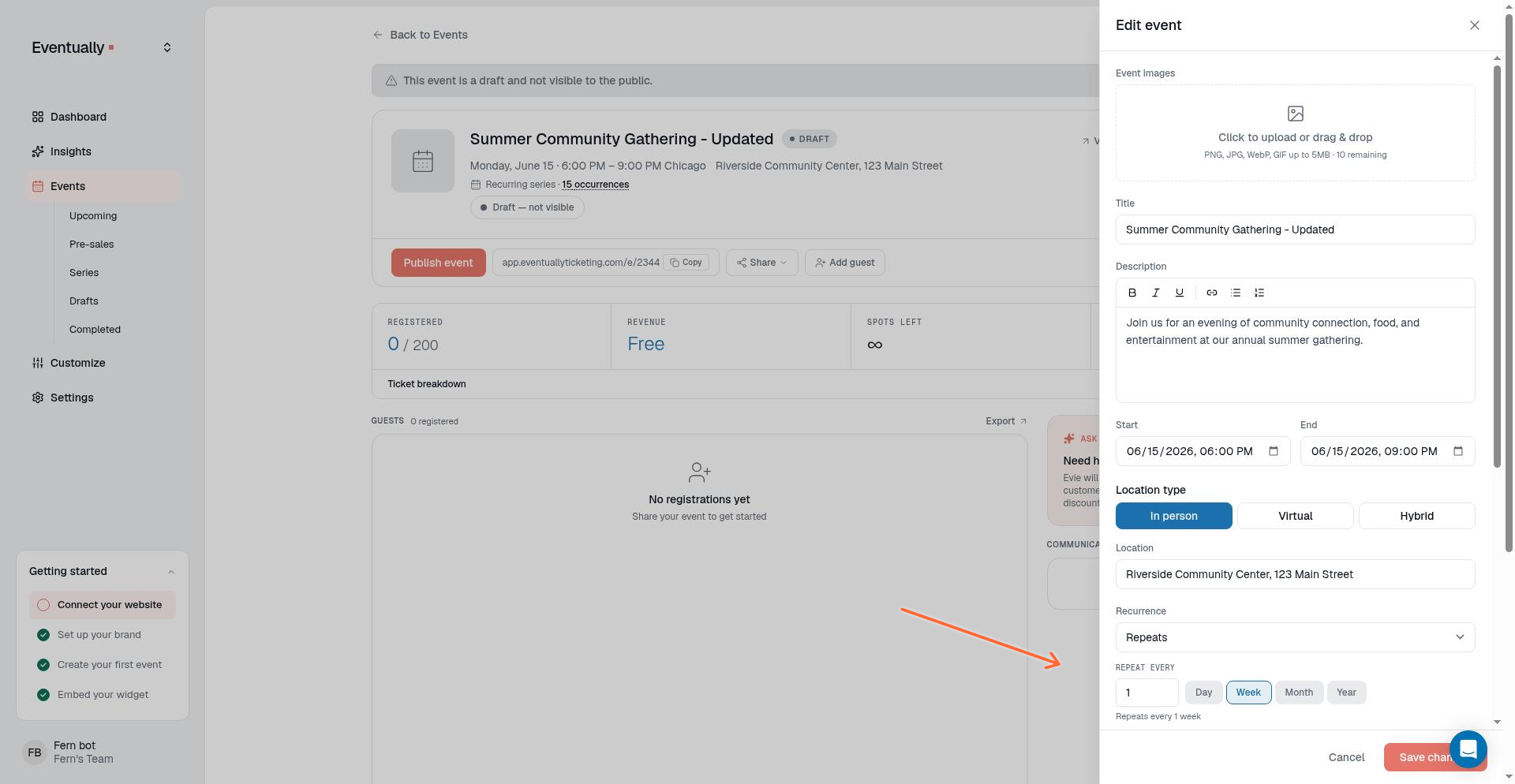
Locate the recurrence settings in the editor, under Repeats.
Update the repeat pattern.
Click Save Changes, then choose a scope.
Saving a schedule that is already recurring keeps the existing recurrence rule and generated dates. When you change the pattern, we add a later schedule rule to the same series instead of splitting it: earlier dates keep the original pattern and later dates follow the new rule. The series is only torn down when you switch the event away from a recurring schedule type. For what happens when you save, including the confirmation for booked dates, see Edit an event.
Switching away from a recurring schedule
When you change a recurring series to Single date or Multiple dates, a confirmation appears before saving. It lists which sessions will be removed and which will be kept, so you can see exactly what changes before you commit.
The confirmation groups sessions under Removing · nobody registered and Keeping · has people registered, showing each session's date, registration count, and revenue. Sessions with active registrations are never deleted.
Cancelling the confirmation leaves the series, its recurrence settings, and all its sessions unchanged.
After you confirm, empty sessions are removed. Sessions that have active registrations become standalone events: they keep their registrations, ticket tiers, and sellability, and simply stop being part of the series.
Canceling and deleting sessions
You can remove dates from a series without deleting the entire event:
Cancel a single session: removes one date while keeping the series active. Attendees registered for that date are emailed only when cancellation emails are enabled. When cancellation emails are switched off, no one is emailed.
Cancel the series: cancels every occurrence in the series. Each occurrence sends its own cancellation email to the attendees registered for it.
Delete the series: removes all sessions. You can restore the series within 30 days from Events → Recently deleted. If anyone holds a ticket, Delete becomes Cancel series instead, so their tickets are kept.
To cancel a single session, open that occurrence and choose the cancellation option. The series continues for remaining dates.
Deleting a date that has ticket holders opens a choice instead. Delete this date asks what should happen to its buyers: keep their tickets by cancelling the session, cancel and refund them, or move them to another date. Series ticket holders keep their pass and only miss that session. Deleting the first date affects only that date: the next date leads the series, the rest of the series stays on sale, and restoring the deleted date brings it back as its own event, outside the series. See Delete or cancel an event date with ticket holders.
Deleting from the Series or Drafts tab still acts on the whole series, and deleting a first date that has no ticket holders of its own keeps the existing whole-series behavior.
Related guides
Using Evie (AI) to create an event: start a series from a plain-language recurring prompt
Quick start guide: connect your site and create your first event
Installing the calendar widget: display your recurring events on your site
Using QR code check-in: check in attendees for each session
Edit an event: general editing workflow for all events
Date, time, timezone, and location autocomplete: set the time zone used for session dates and display
Event creation and editing issues: fix missing sessions or wrong-day recurring dates