
Get event insights with Ask Evie
Ask Evie about your events from the Insights page to get live counts, ticket breakdowns, and capacity summaries in plain language. Evie answers in prose by default and only shows the structured data table when you explicitly ask to see the numbers laid out.
Open Insights
Insights is available on the Growth plan and higher; on other plans the sidebar item is hidden. Click Insights in the left sidebar, below Dashboard.
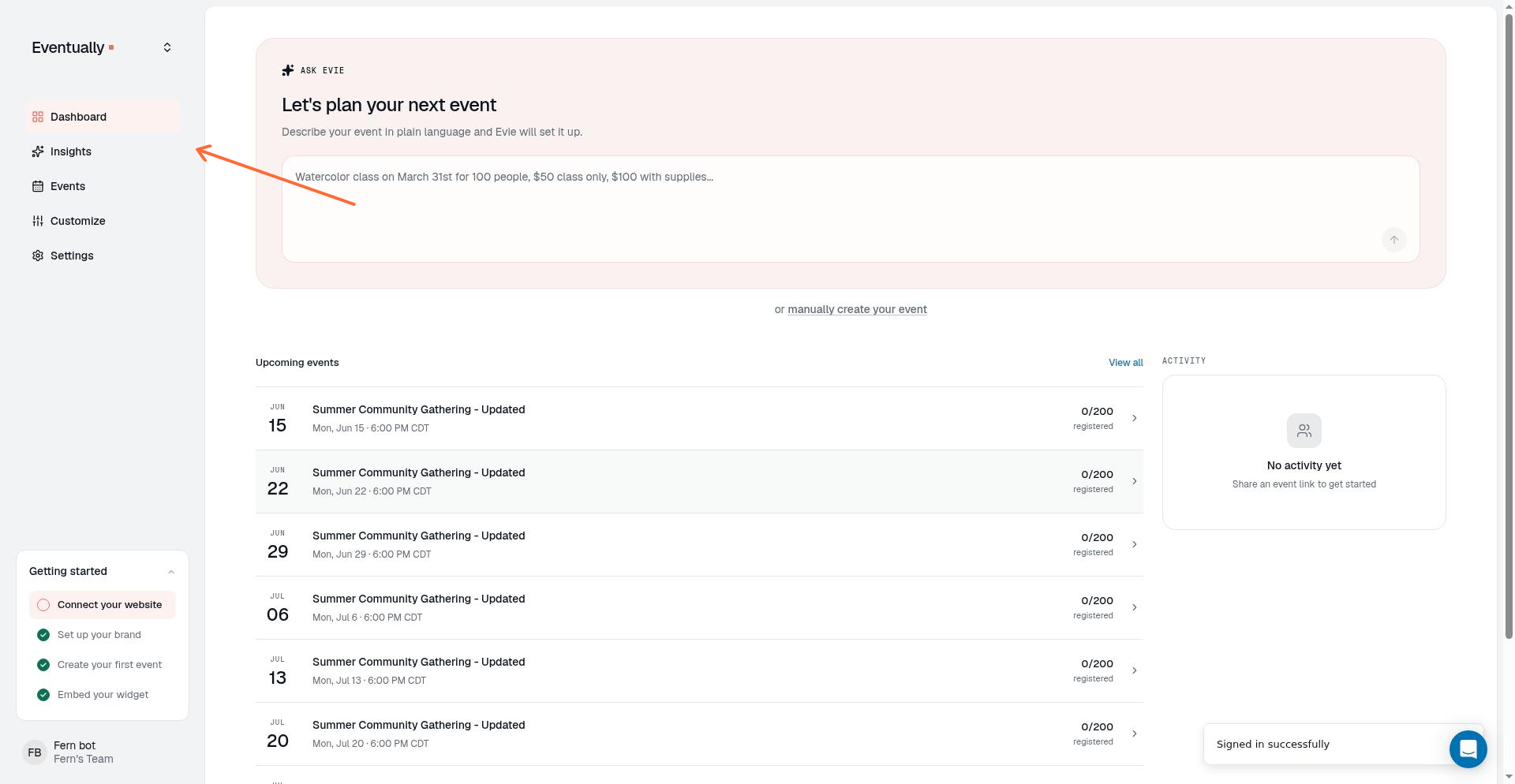
The page opens at /insights and shows the Ask Evie conversation surface.
Ask a question
Type a question in the main input field and press Enter.
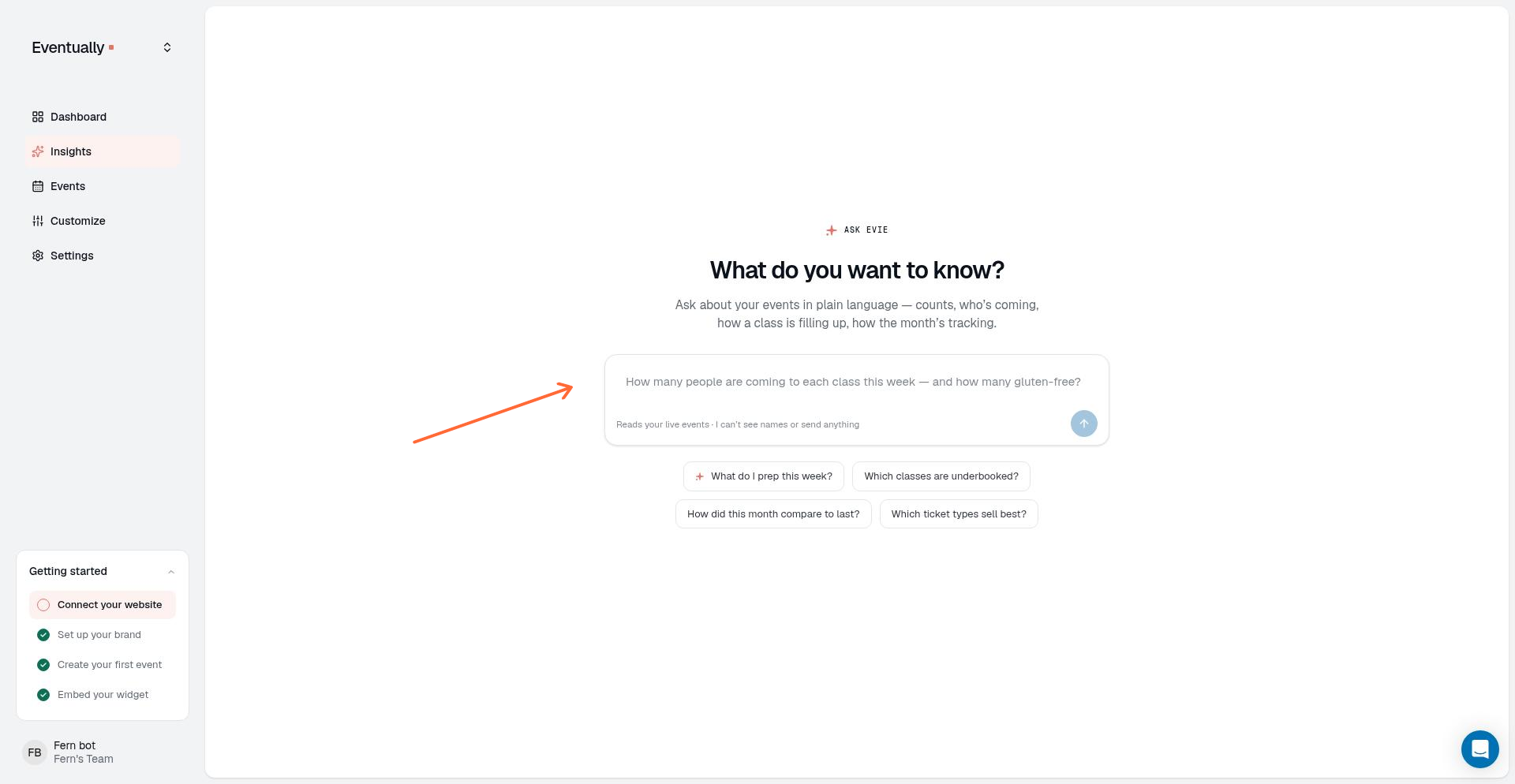
Suggested questions you can ask include:
What do I prep this week?
Which classes are underbooked?
How did this month compare to last?
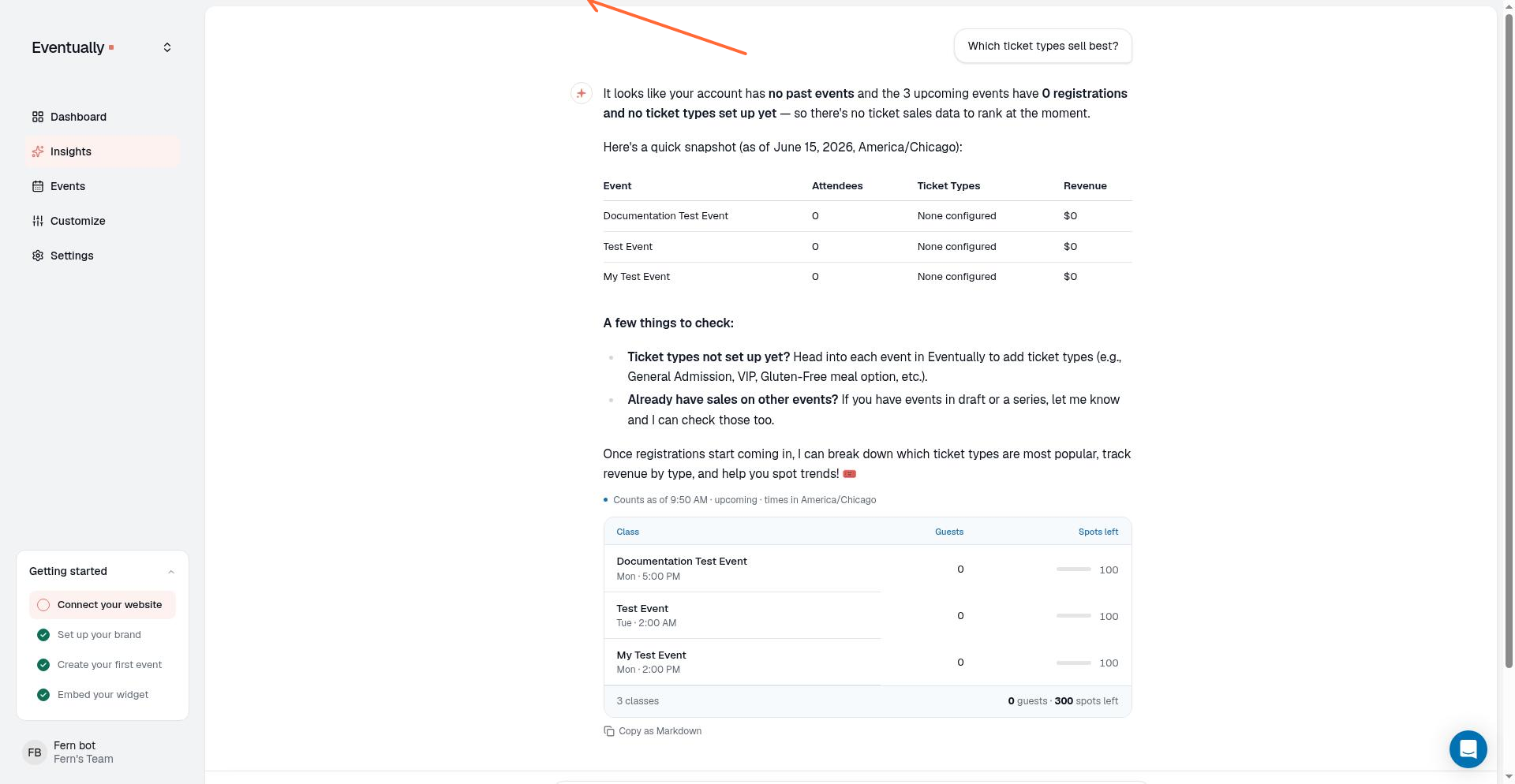
Which ticket types sell best?
Evie reads your live events and ticket data. It cannot send anything on your behalf. It can read attendee names only after an owner or admin turns on customer data access.
Wait for the response
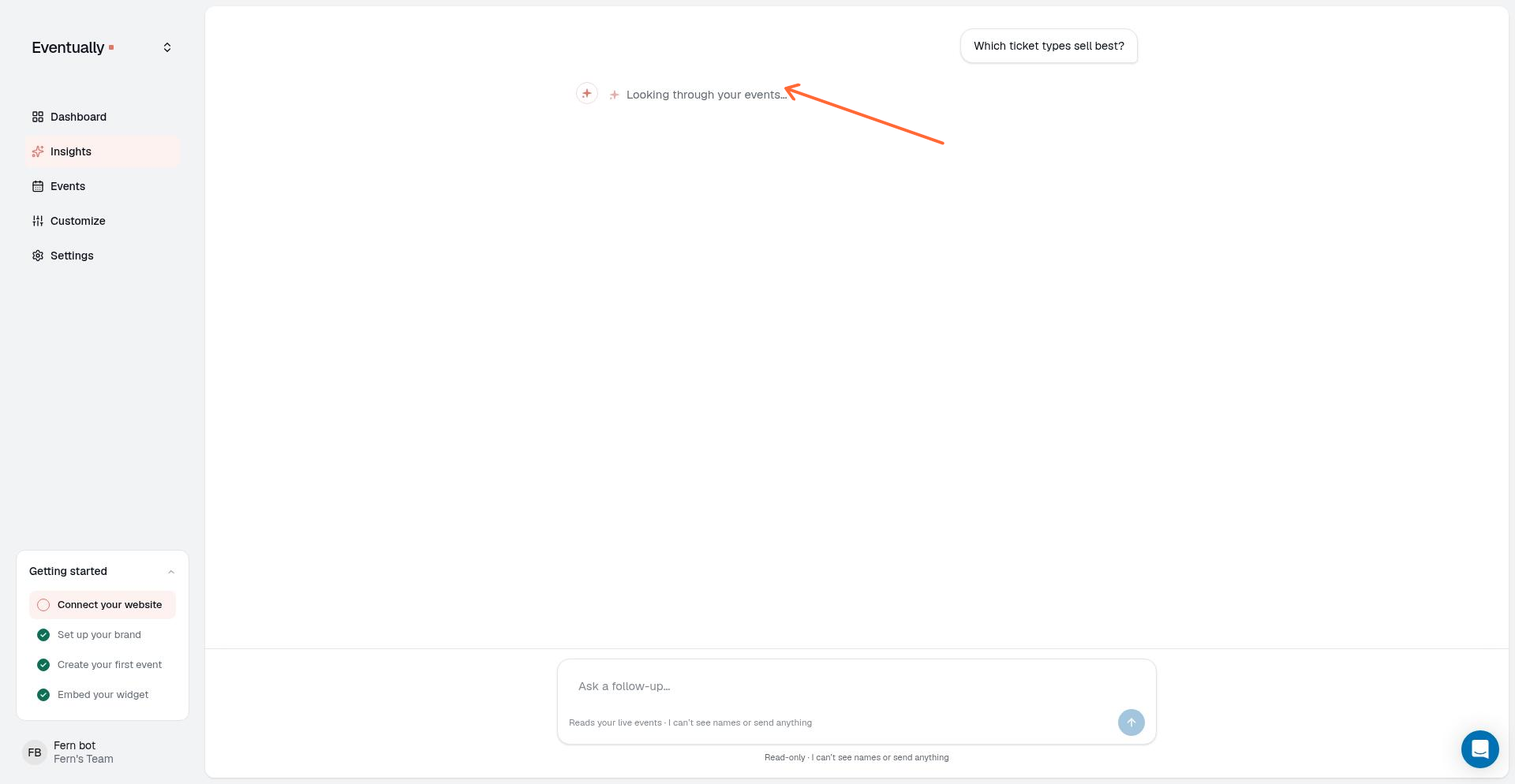
After you submit a question, Evie shows Looking through your events… while it searches your data.
Read the answer
Evie returns a plain-language answer by default. It will summarize counts, flag underbooked classes, or compare time periods without automatically attaching a table.
Evie also calls out oversold events on its own, without you asking. When active attendance exceeds an event's capacity, Evie reports how far over capacity it is instead of describing it as merely sold out: a full event has zero spots left, while an oversold event has attendance above capacity. Seats still held in checkout don't count toward that number, and an event with unlimited capacity is never treated as oversold. For a recurring series, Evie's answer includes capacity and oversold status for each instance.
When Evie shows a table
If you want the structured data laid out, ask for it explicitly. Prompts that trigger the sourced table include:
show me a table
list each class
break it down
give me the numbers
as a spreadsheet
When Evie returns a table, the columns show the data it used to answer your question.
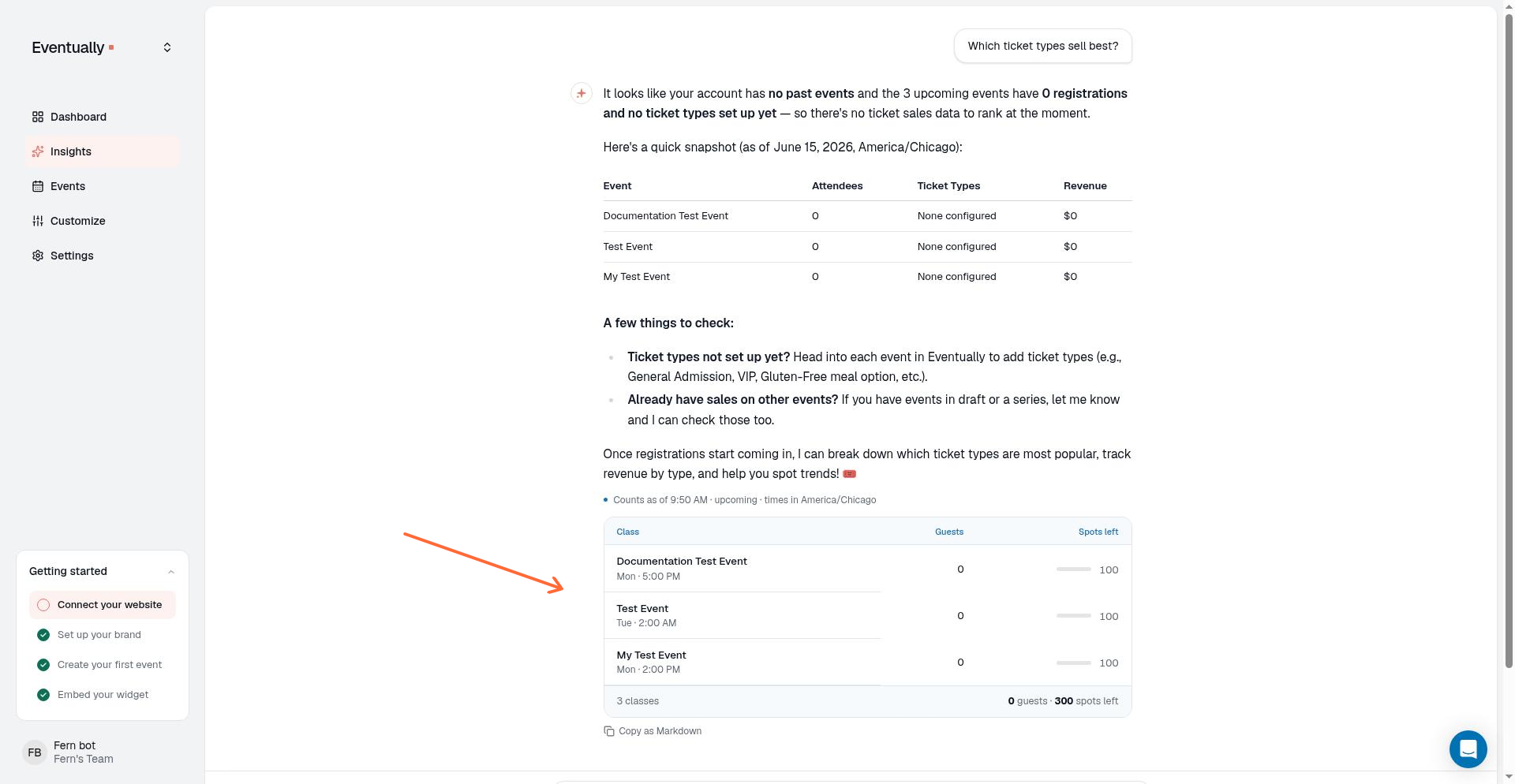
Common columns include:
Class: the event or class name.
Guests: total bookings.
Spots left: remaining capacity.
The table also includes an as of timestamp and a footer summary with the total event count, guest count, and any spots left.
If you need to change capacity limits, see Set event capacity and ticket limits.
How ticket-type columns are chosen
When the table includes ticket-type columns, Evie chooses them by shared usage across your events rather than listing every type in first-seen order. This keeps the table from filling with empty or mostly-zero columns.
The rules are:
A ticket type earns its own column only if it appears across multiple events (or every event, if there is only one event).
Single-use ticket types are folded into an Other column or omitted entirely when the account has many heterogeneous types.
At most four ticket-type columns appear, including Other. The top shared types are ranked by how many events use them and their total counts.
If no ticket types are shared across events, the table drops ticket-type columns entirely and shows only the Class, Guests, and Spots left columns.
Ask a follow-up
After the first reply, use the follow-up field to refine your question.
Type another question and press Enter to continue the conversation in the same thread.
Customer data access
Evie reads attendee names, email addresses, and registration answers only after an owner or admin turns on customer data access from the Insights page. Access is off by default, and only owners and admins can enable it; members see a read-only explanation instead.
Turn on customer data
On the Insights page, the card labeled Let Evie read customer data? shows what Evie will read. Select the acknowledgment I understand Evie will read our customer data to answer questions., then select Turn on customer data. The enabled state shows who turned on access and when.
What Evie can do with customer data
With access enabled, Evie can build a per-event roster with attendee identity, ticket type, quantity, registration status, check-in state, and answers to the event's current registration questions. It can also search the team's attendees by a case-insensitive partial name or email query of at least two characters, returning up to five recent active registrations per matching person.
Roster results represent one row per registration order, not one row per seat. A multi-seat order can contain more people than roster rows, and only active registrations are included.
Turn off customer data
Select Turn off to revoke access. This starts a fresh conversation, so earlier customer-data answers are not carried into later questions. Evie remains read-only: it can look up data but cannot modify events, contact attendees, or perform transactions.
If Evie is unavailable
If the feature is disabled, the page shows Evie isn’t available right now. Check back soon.