
Manage tags for your events
Tags help you organize events in your dashboard. Tag names are not shown to visitors, but you can use tags to limit which events appear in a calendar widget. You can rename tags to fix typos, merge duplicates into a single tag, or delete tags you no longer need.
Where tags live
Tags are managed on the Categories page in your Eventually dashboard. Go to Customize → Categories to view and edit your tags.
Each tag row shows how many events currently use that tag. This helps you understand the impact before making changes.
Use tags to scope a calendar widget
After you assign tags to events, go to Customize → Calendars, open a calendar, then open the Show group and pick tags under Tags to show only matching events. Tag names stay hidden from visitors; only the filtered event set changes. Full steps are in Set up your calendar widget.
Rename a tag
Renaming a tag updates its display name across all events that use it.
Go to Customize → Categories.
Find the tag you want to rename in the Tags section.
Click Rename next to the tag.
Type the new name and press Enter to save.
You'll see a confirmation message: Tag renamed.
Renaming only changes the display name: it does not create a new tag or affect which events are tagged.
Merge duplicate tags
If you have duplicate or similar tags (such as "workshop" and "Workshops"), you can merge them into a single tag. All events from the merged tag move to the target tag.
Go to Customize → Categories.
Find the tag you want to merge.
Click the Merge icon next to the tag.
Select the target tag you want to merge into.
Confirm the merge.
You'll see a confirmation message: Merged into [tag name].
You cannot merge a tag into itself. The merge button is unavailable if you only have one tag.
Delete a tag
Deleting a tag removes it from your dashboard and unlinks it from all events. The events themselves are not deleted.
Go to Customize → Categories.
Find the tag you want to delete.
Click the Delete icon next to the tag.
Confirm the deletion.
You'll see a confirmation message: Tag deleted.
Add tags to an event
When you create or edit an event, you can assign tags using the tag picker. The picker suggests existing tags as you type, so your tagging stays consistent across your events.
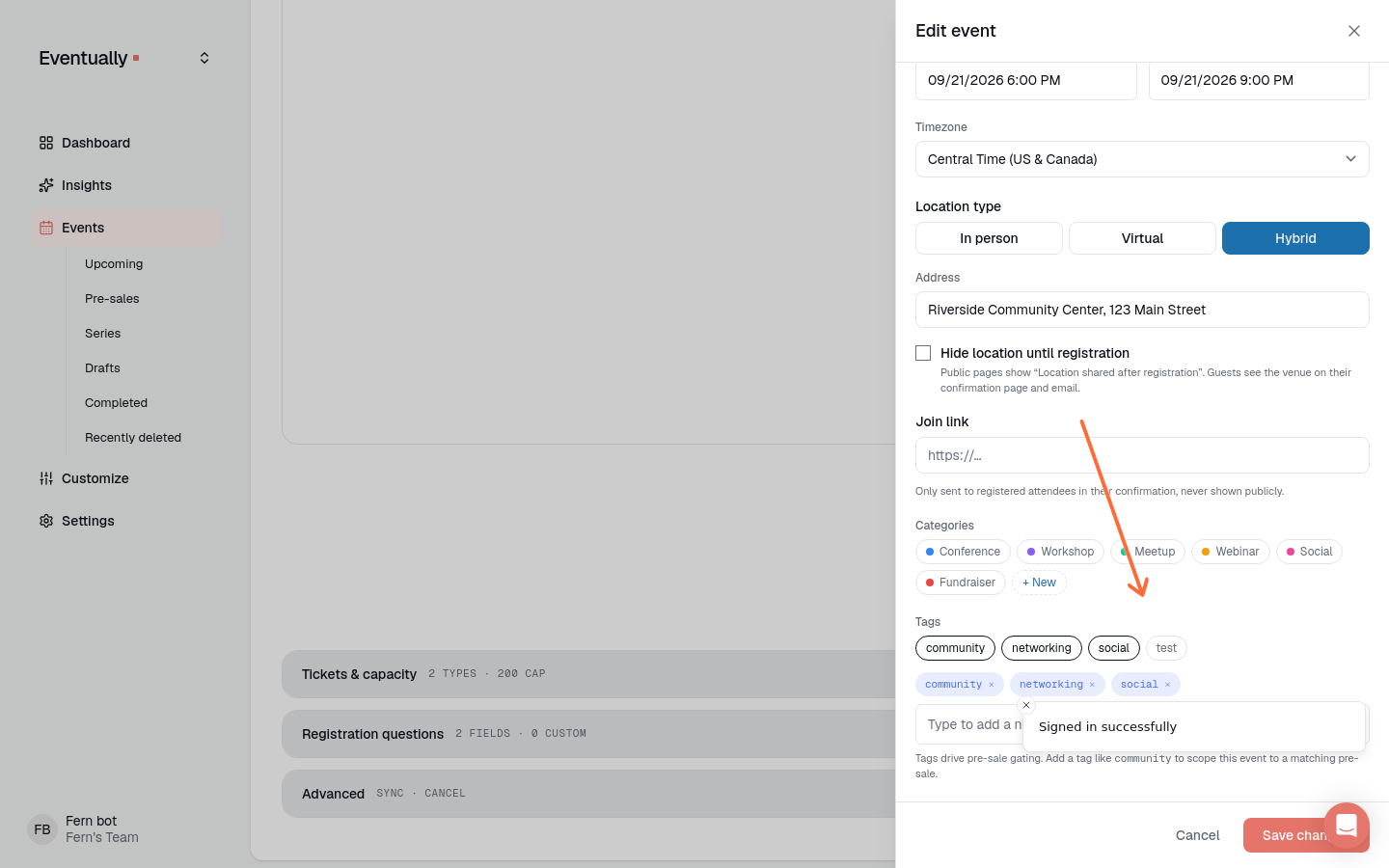
Open an event for editing or create a new event.
Find the Tags field under Organize in More options.
Start typing to see matching tag suggestions.
Press Enter or click a suggestion to add the tag.
Repeat to add multiple tags, or use commas to separate tags.
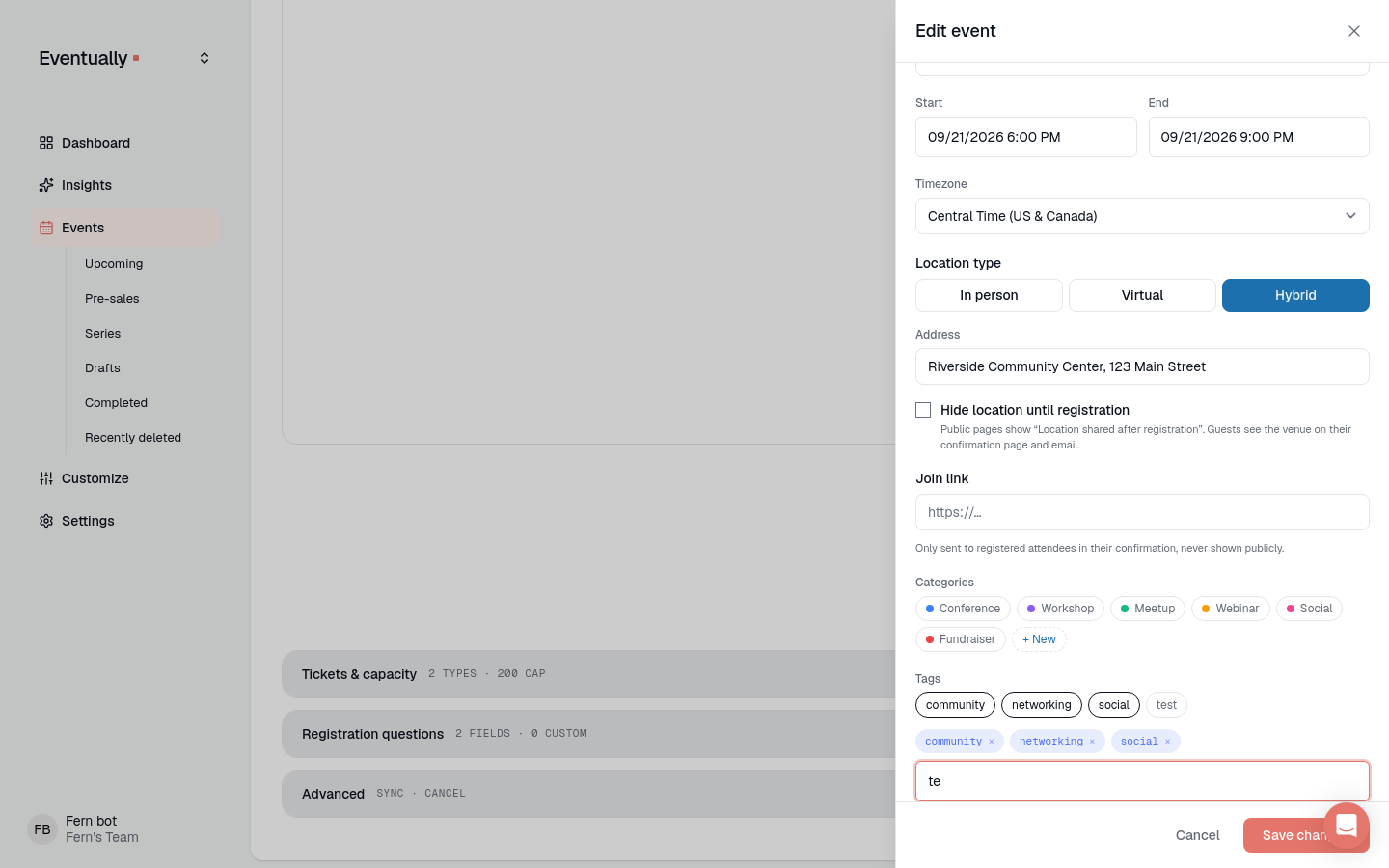
The tag picker suggests existing tags as you type. To use a completely new tag, type its name in the Tags field and press Enter or comma to create it right from the event editor.