
Set up access codes for ticket types
Access codes let you hide specific ticket types from public view. Only buyers with the code can see and purchase those tickets: useful for member-only presales, private offers, or exclusive pricing tiers.
How access codes work
When you add an access code to a ticket type, that ticket disappears from the public event page and calendar widget. Buyers see a "Have a code?" prompt instead. After entering the correct code, the hidden ticket type appears and they can purchase it.
Access codes are set per ticket type, not per event. This means you can have some ticket types public and others gated within the same event. An access code changes who can see a ticket type, not its price: to reduce what a buyer pays at checkout, use a discount code in Squarespace (see How discount codes work).
Access codes are available on the Growth plan and higher. On other plans, the Access code field does not appear on ticket types.
One access code per ticket type
Each ticket type supports exactly one access code. If you need different codes for the same offering, such as separate member and staff rates, create a separate ticket type for each code.
A ticket type can only carry one access code at a time. Use multiple ticket types if you need multiple codes.
Add an access code to a ticket type
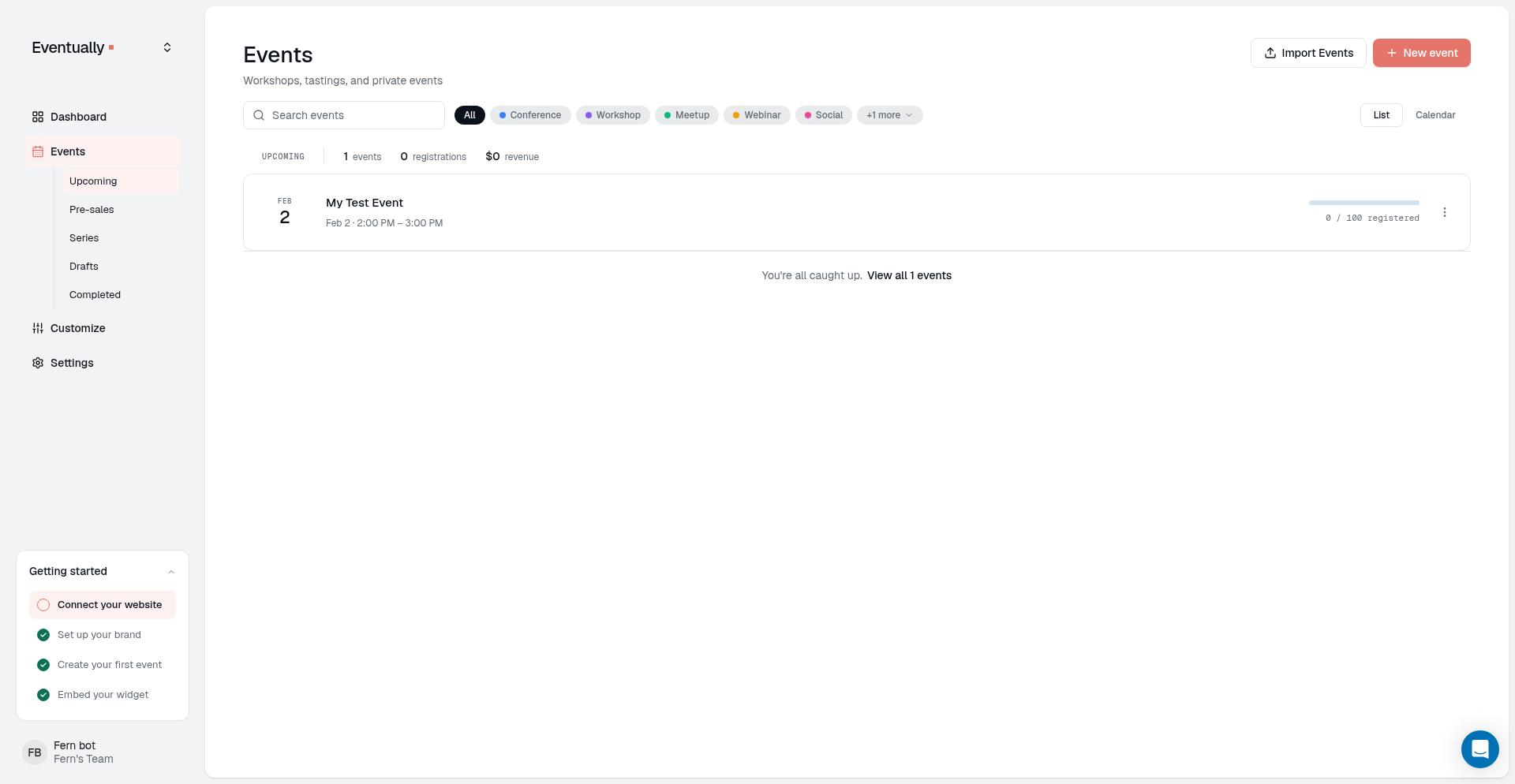
Open Events, then select your event.
Open the Tickets & capacity section and edit the relevant ticket.
Find the Access code field.
Enter an access code with at least 6 characters.
Select Save ticket.
Leave the Access code field blank to make the ticket type publicly visible. This is the default setting for all new ticket types.
If an existing ticket type already has an access code shorter than 6 characters, you must replace it with a longer code before you can save changes to that ticket.
The helper text below the field reads: "Buyers must enter this code to see this ticket type. Use at least 6 characters."
Why won't my access code save?
We require all access codes to be at least 6 characters long. If you try to save a ticket type with a shorter code, you will see a validation error. Replace any existing code that is shorter than 6 characters before saving.
How buyers unlock tickets
On the public event page or calendar widget, buyers will see a "Have a code?" link near the ticket types section.
Buyers click "Have a code?"
They enter their code in the "Enter access code" field.
They click Apply.
If the code is correct, they see "Code accepted! Tickets unlocked." and the hidden ticket type appears in the ticket list. They can then select and purchase it like any other ticket.
Error messages
Buyers may see these messages when entering an incorrect code:
"This ticket is not currently available.": the code doesn't match any gated ticket type for this event.
"Something went wrong. Please try again.": a temporary error occurred. Buyers should retry.
"Too many attempts. Try again in a few minutes.": the buyer exceeded the limit on unlock requests within a short time window. Every request counts toward this limit, including correct codes and empty submissions, not just incorrect ones.
Share a direct access-code link
Owners and admins can copy a link that opens the event with the access code already applied, so buyers don't need to type it.
Open the event in your dashboard and edit the gated ticket type.
Find the Access code field. Under the saved code, select Copy link.
Share the link with the people who should unlock this ticket type.
The link includes the access code in its URL, so anyone who has the link can unlock the ticket type. Share it only with your intended audience.
When someone opens the link, the event page applies the code automatically and removes it from the address bar after loading. A matching code reveals the hidden ticket type, and the "Have a code?" link stays available for anyone who wants to enter a code manually. If the code doesn't match, buyers see the normal access-code errors described above.
The same link format also works for pages that use your Eventually embed code. The code is forwarded to the embedded events on that page: an embedded event with a matching hidden ticket type can open inline with the ticket unlocked, and a code that doesn't match shows nothing, so the link stays usable for a different gated event on your site.
Access-code links aren't available through the Squarespace extension yet.
The Copy link control appears for owners and admins when the event has a live public page. Otherwise, publish the event or wait until its scheduled publish time passes and the page goes live. For a draft event, a note asks you to publish the event first, because a draft has no public event page to link to.
Use cases for access codes
Member presales: send a code to your members or newsletter subscribers before public ticket sales open.
VIP pricing: offer discounted ticket types to a select group without advertising the price publicly.
Private events: create a hidden ticket type for invite-only attendees while keeping a public registration option for waitlist or overflow.
Staff and comp tickets: reserve ticket types for staff, press, or complimentary guests.
Share access codes carefully
Access codes are not unique per buyer. Anyone with the code can unlock the ticket type. If you need per-person validation, for example assigning unique codes to each member, consider using a separate private event or a different approach.
Related guides
Quick start guide: overview of event setup and checkout
Set up your calendar widget: how the calendar widget displays events