
Set league prices, run a sale, and change event prices
Set prices for a league in the Event Series settings, mark tickets down with Original price (optional) to put them on sale, and change any ticket's price by editing its tier. Buyers who already registered keep the amount they paid: a price change applies to future purchases only.
Before you start: Event Series is available to owners and admins on Pro and Ambassador teams, and paid tickets are included on Essentials and higher. Ticket prices use your connected Squarespace store's currency. See Billing and plans for plan comparisons.
Open the ticket tier editor
Every price you set or change lives in a ticket tier editor: on a single event, on a series date, and on a league's ticket tiers. To open it:
In the dashboard sidebar under Events, click the event.
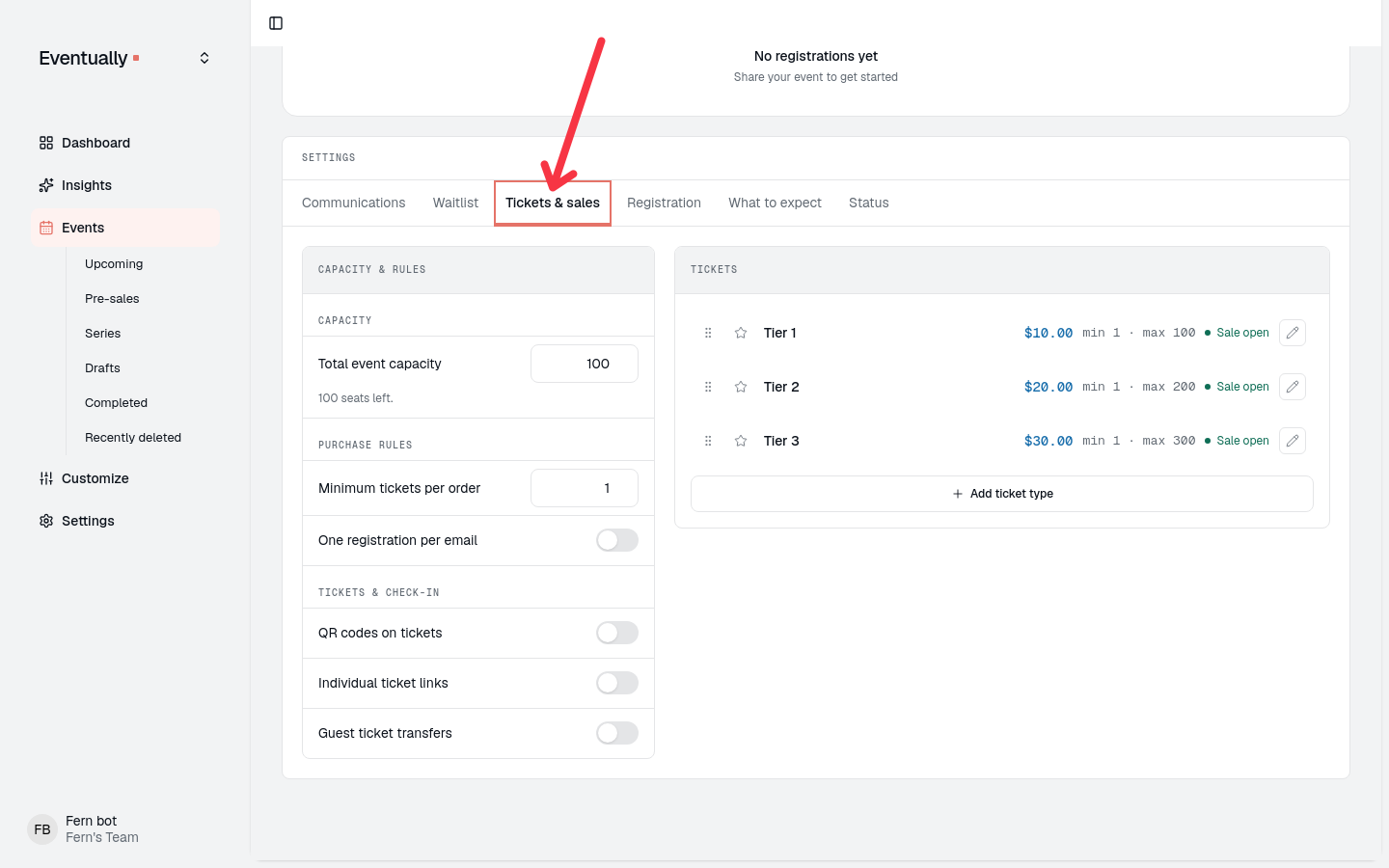
On the event page, select the Tickets & sales tab under Settings (some workspaces label it Tickets & capacity).
In the Tickets card, click the pencil icon beside the ticket type, or click Add ticket type.
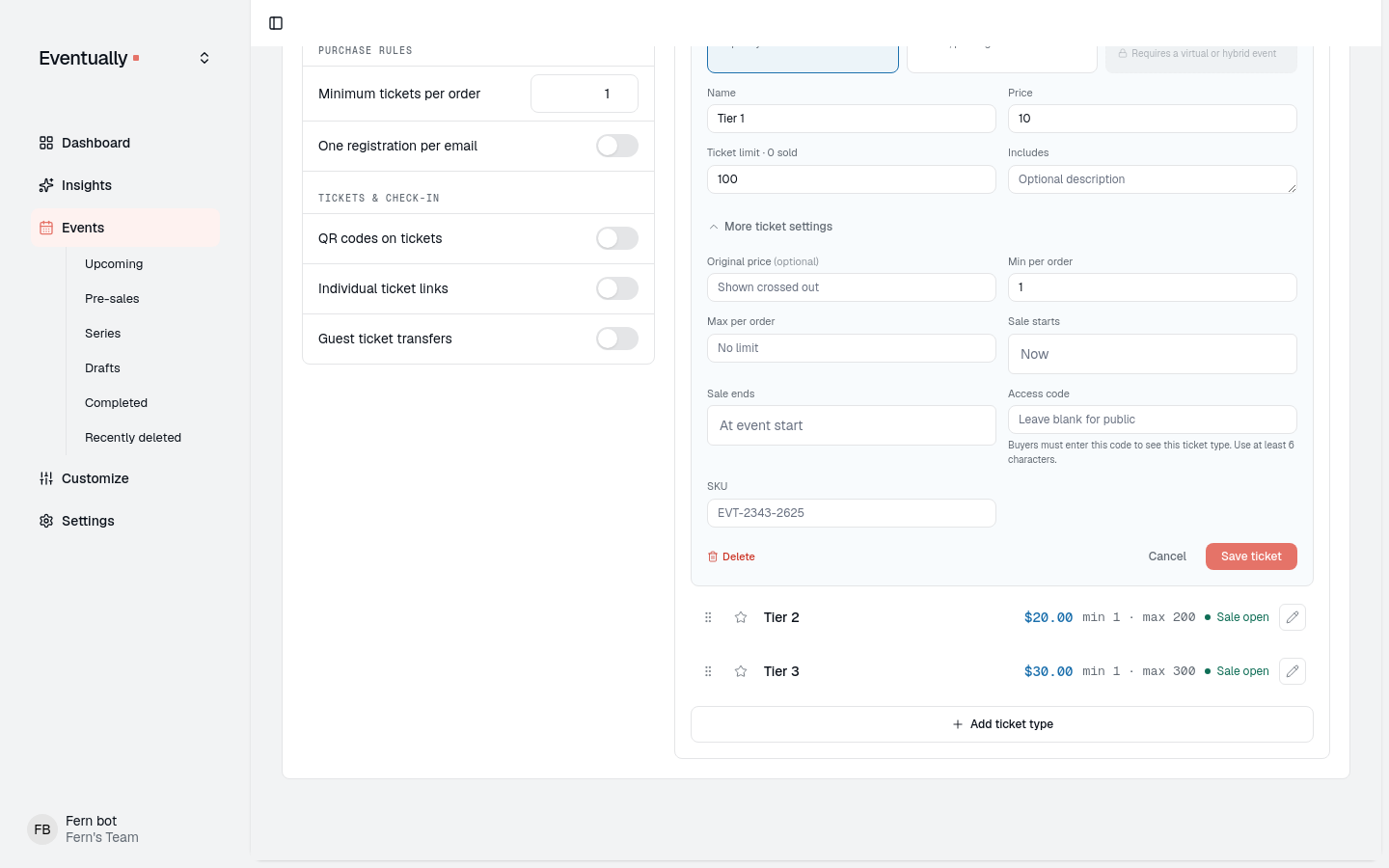
The editor shows Name, Price, and Ticket limit up top, and a collapsed section below them holds Original price (optional), the per-order limits, Sale starts and Sale ends, the SKU, and the access code. Click Save ticket to save your changes.
Set the price of a league
A league runs as an Event Series: one series ticket covers every session, with optional per-session drop-ins. You set its price while creating the series, in the Event Series Settings section of the new-event wizard:
Open the new-event wizard and choose New series.
In Date & Time, select Event series and pick at least two dates.
Enter the number of series tickets under Entire series tickets:. It must be a whole number from 1 up to 10,000. This pool is what every series ticket tier sells from.
Enter the series price under Total event series price:. It must be 0 or higher and under $1,000,000.
To also sell single-session seats, turn on Allow drop-ins and set a price for each session under Drop-in price per session. A price you leave blank defaults to an even share of the total series price, rounded to the nearest cent.
Finish creating the event. The Event Series panel appears on the series' first-date event page.
To change these prices later, open the series' first date and edit the Event Series panel, then click Save changes. Two rules apply: the number of series tickets cannot go below the number already sold, and series-ticket sales close when session 1 starts, which disables the count and price fields from then on.
To charge different buyers different series prices, add tiers in the Series ticket types section of the panel: click Add ticket type and enter the tier's Name, Price, and Ticket Limit. Series tiers use the same tier editor shown above, including Original price and sale windows. Once a series has individual ticket types, the single Series ticket price field is hidden and every type sells from the shared series ticket count. Each tier ticket still covers every session of the series.
Put tickets on sale
Use Original price (optional) to show a struck-through "was" price beside the current price. The markdown is display only: it does not schedule when the tier becomes available.
Open the ticket tier editor for the tier you want to mark down.
Expand the collapsed section below the Price field.
Under Original price (optional), enter the higher regular amount. Price stays the amount buyers pay.
Click Save ticket.
Original price must be higher than Price. If it is blank, equal to Price, or lower, buyers see a normal single price with no struck-through styling. While a tier is marked down, widget cards and the registration panel show the original amount struck through beside the current price, and on card view the category pill becomes a SALE chip when the marked-down tier is the default. If the event is sold out with a waitlist open, the pill shows JOIN THE WAITLIST instead. Clearing Original price removes the sale display.
Series ticket tiers work the same way: edit the tier in the Series ticket types section of the Event Series panel and set Original price there.
To control when a tier is available instead, set Sale starts and an optional Sale ends date and time in the tier editor. Before the window opens the tier is hidden from buyers; after it closes it shows as sold out or unavailable. You can use both together: sale windows schedule availability, and Original price shows the markdown while the tier is available. See Timed ticket release and sale windows.
Change the price of an event
Changing a price means editing the ticket tier, not the event details:
Open the ticket tier editor for the ticket (see the first section above).
Change the Price field.
Click Save ticket. The change saves and syncs to the ticket's matching Squarespace Commerce product variant.
On a recurring event, the save asks which dates to update: This event, This and following events, or All events. Your change applies only to the scope you choose, and past occurrences are unaffected. Original price propagates with the other tier fields when you update a tier across a series. See Manage recurring event ticketing limits and access.
What happens to tickets already sold
Changing a price never recharges or refunds anyone:
Existing registrations keep the amount they actually paid. Their price is not recalculated when the tier changes.
Future purchases use the new price.
The matching Squarespace Commerce variant is updated for later purchases. Changing Original price by itself does not change the variant's price, because the catalog price follows Price, not the markdown.
A tier that has sold tickets stays editable. Its sold count appears beside Ticket limit in the editor.
On a league, the same rules apply to series ticket tiers. The only sold-count guard is on the pool itself: reducing the number of series tickets below the number already sold is refused, and the error names the sold count.
Related guides
Set up an Event Series with series tickets and drop-ins: create the league and its first prices.
Creating ticket tiers and pricing: ticket tiers, capacity, and per-order limits in depth.
Timed ticket release and sale windows: schedule when tiers go on sale.
Set up access codes for ticket types: hide a discounted tier for member-only pricing.
Edit details for an Event Series: change the details every date of a series shares.