
Reorder ticket tiers for an event
The order of your ticket tiers determines how they appear on your event page. When customers view your event, tiers display in the order you've set. You can change this order at any time by dragging tiers into your preferred sequence.
Changing the ticket tier order
Tier order is configured in your event's ticket settings. The same order carries over when you duplicate or repeat an event.
Navigate to Events in your Eventually dashboard to see your event list.
Open your event by clicking on it from the Events page.
Scroll to the Tickets & capacity section where your ticket types are listed.
Drag the tier to reorder: each ticket tier has a drag handle (six dots) on the left. Click and drag the handle up or down to change its position.
Release the tier after dragging; the new order is saved automatically.
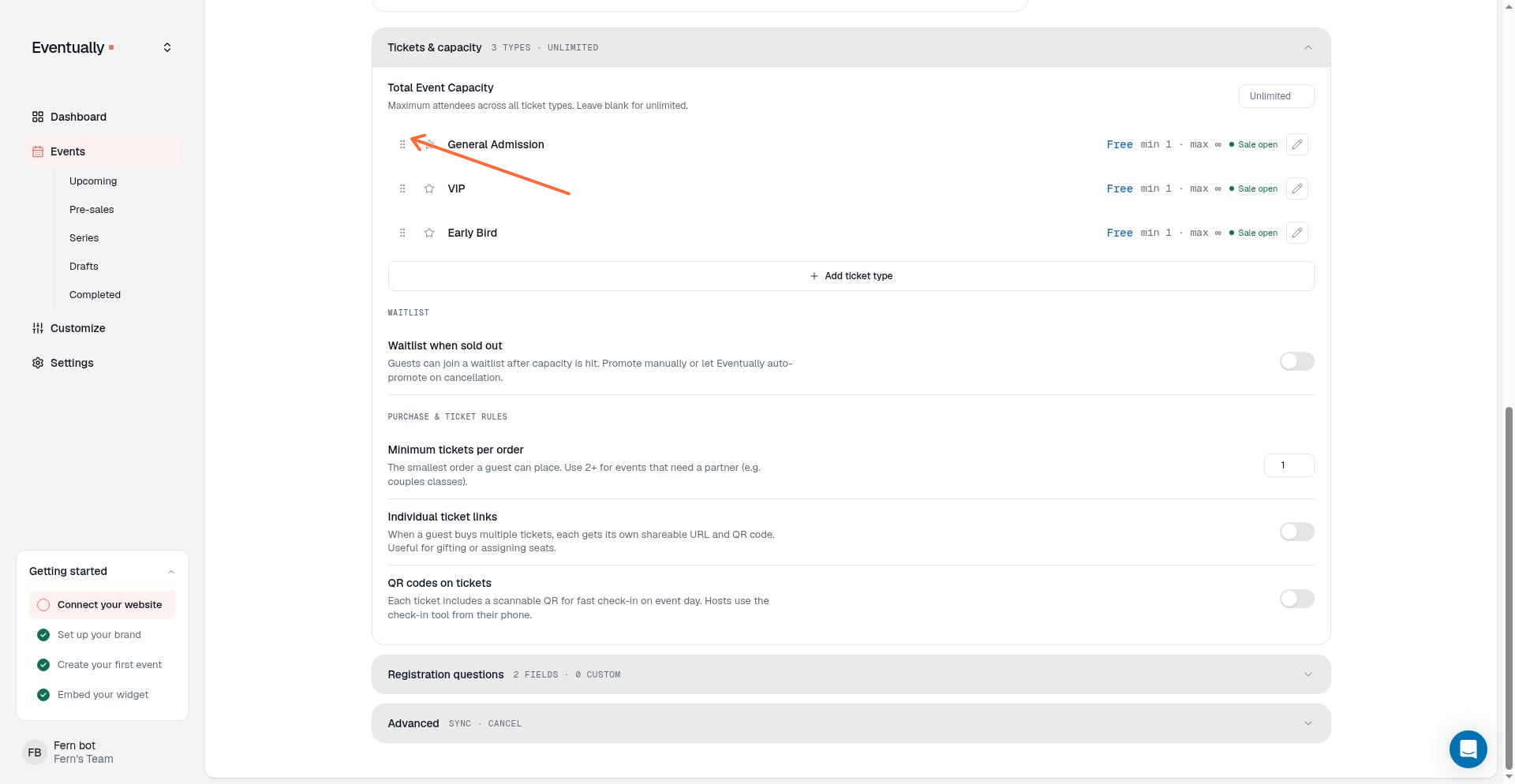
Your event page reflects the updated order immediately.
Setting a default ticket tier
A default tier is pre-selected when it is on sale, available, and meets its minimum-order requirements. This is useful if you want to highlight a specific ticket option.
To set a default tier, click the star icon next to that tier. The star fills to indicate it's the default. Click the star again to remove the default setting.
Only one tier can be the default at a time. Setting a new default removes the previous one.
How order carries over
When you duplicate an event or set up a recurring series, we preserve the ticket tier order from the original event. This means you don't need to reorder tiers manually for each duplicate or recurring instance.
If you reorder tiers on a recurring event template, newly generated instances of that series use the updated order. Reordering alone does not update instances that were already generated.
Troubleshooting
"Ticket tiers changed since you started dragging. Please re-drag."
This message appears if someone else edited the ticket tiers while you were dragging. The tiers have been updated on the server. Release the drag, then drag again to apply your reorder.
"Reorder failed. Restored the previous order."
If reordering fails, we restore the previous order automatically. Drag the tiers again; if the problem persists, refresh the page and retry.
What's next
Quick start guide: Overview of event setup including ticket types and pricing
Creating recurring events: Set up classes, workshops, or repeating series