
Choose how tickets are added to the cart
By default, when a guest selects tickets for your event, they're sent directly to the Squarespace checkout. You can change this behavior so guests add tickets to their cart instead, giving them time to browse other events or continue shopping before completing their purchase.
How checkout modes work
You can choose between two checkout behaviors:
Instant checkout: When a guest selects paid tickets, they go straight to the Squarespace checkout page. This is the default behavior. For free tickets on an event that records free tickets in your store, guests choose between Reserve now (instant), which completes their registration without going to Squarespace checkout, and Add to cart (with other items). See Record free tickets in your store.
Add-to-cart mode: When a guest selects tickets, the tickets are added to their Squarespace cart. The guest stays on your site and can continue browsing or register for multiple events before checking out.
Add-to-cart mode works well if you offer multiple events and want guests to purchase tickets for several events in one transaction.
Set the default checkout mode for new events
You can set a team-wide default that applies to all new events you create.
From your Eventually dashboard, click Customize in the left sidebar.
On the Event Defaults page, find Add to cart mode.
Toggle it on to make add-to-cart mode the default for new events.
Save your changes.
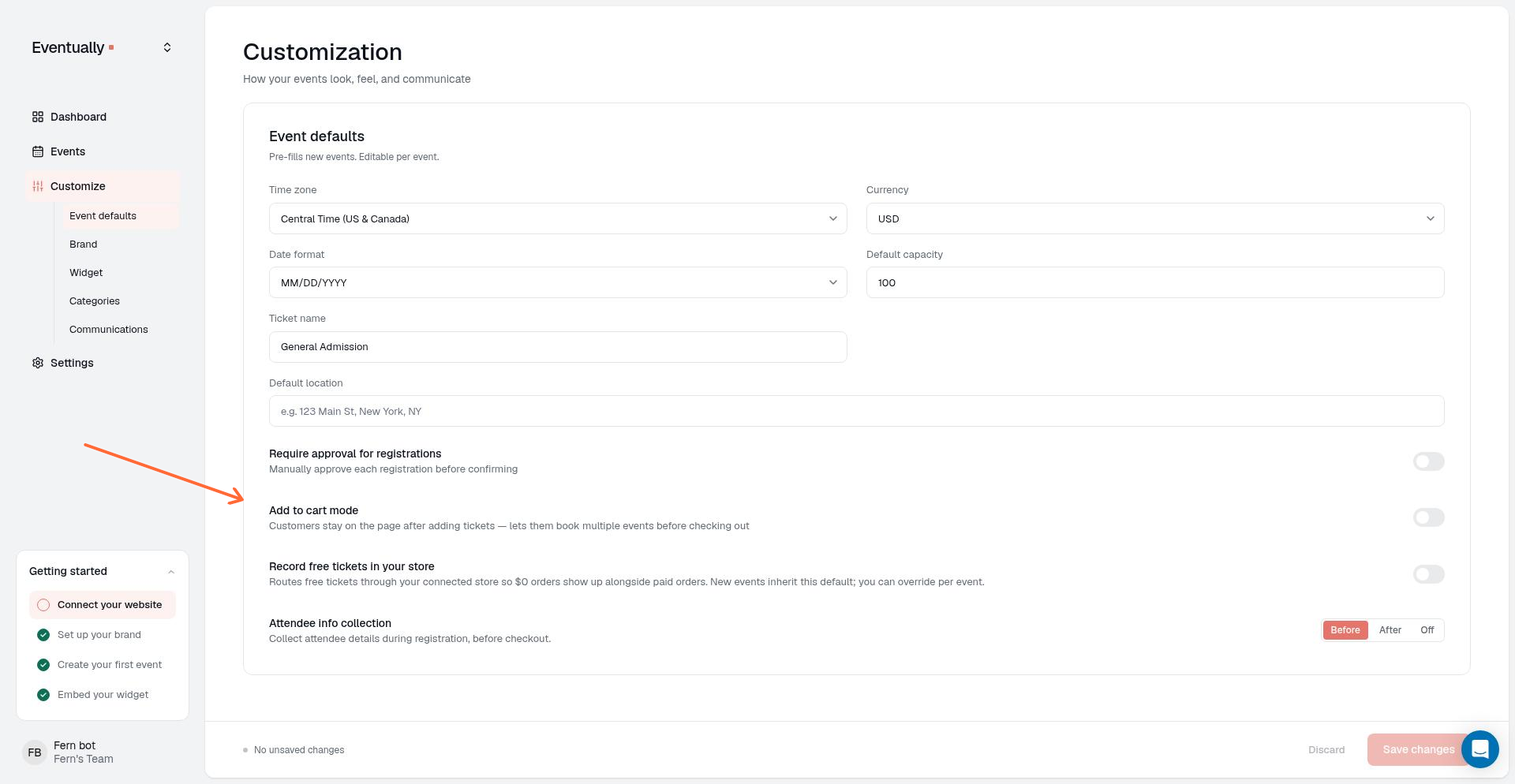
When add-to-cart mode is enabled as the default, any new event you create will allow guests to add tickets to their cart. Existing events keep their current setting until you change them individually.
Override checkout mode for a specific event
You can enable or disable add-to-cart mode for individual events, regardless of your team default.
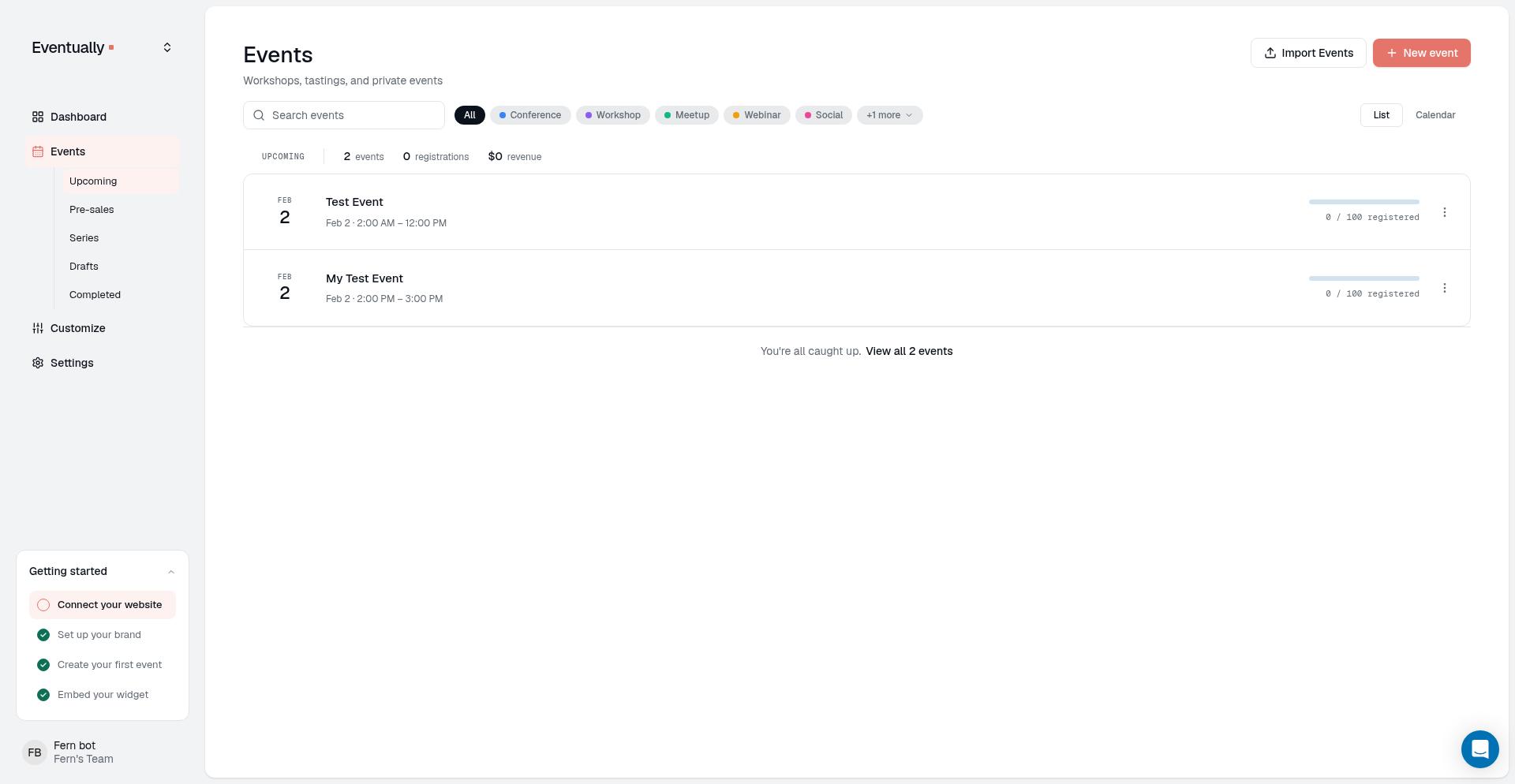
Go to Events and open the event you want to edit.
In the event, open the Checkout section and find Add-to-cart mode.
Toggle it on to let guests add tickets to their cart for this event.
Toggle it off to send guests directly to checkout.
Changing the toggle saves automatically.
Per-event settings override the team default, so you can use add-to-cart mode for some events and instant checkout for others.
What guests experience
Instant checkout: When a guest clicks to purchase tickets, they proceed directly to the Squarespace checkout page. This is ideal when you want a quick, single-event purchase flow.
Add-to-cart mode: When a guest adds tickets, the tickets go into their Squarespace cart. A small confirmation appears, and the guest remains on the event page. They can browse other events, add more tickets, and complete checkout when ready. This is useful if you run multiple classes, workshops, or events and want to encourage guests to register for several at once.
Where to learn more
Quick start guide: Overview of checkout and the attendee purchase flow
Set up your calendar widget: How guests browse and select events
Choose when to collect attendee details: Control when guests fill out registration fields during the checkout flow