
Brand settings: colors, logo, and fonts
Brand settings control your logo, colors, and typography across the hosted public event page, the calendar widget, and all outgoing emails. Set them once in Customize → Global Styles and they apply everywhere. If Global Styles is not enabled for your account, the legacy Customize → Brand page controls the same settings.
Edit styles from the canvas
When Global Styles is enabled, you can also edit your shared styles directly on the canvas. In Customize → Global Styles, click an editable element in the canvas to open its styling popover (selector-only regions such as day cells and date badges have no popover), and the change updates the shared standard that applies across all calendars. Clicking a text element, such as a title, price, or date line, opens the Headings or Body font controls and updates that complete text line. These popovers show only the controls available in the shared Global Styles settings. The open-event panel is set on each individual calendar, so it links to the Calendar Editor instead of editing the shared standard. The header is also set there, except for its divider, which has a site-wide Global Styles setting that the Calendar Editor can override.
Upload your logo
Your logo and brand name appear on the hosted public event page, in the calendar widget, and in confirmation and reminder emails.
Go to Customize → Global Styles in your Eventually dashboard.
Upload your logo image.
There is no separate brand name field. Attendee-facing identity comes from your connected site or team name, and the sender name in emails uses its own resolved organizer value.
On the hosted public event page, your logo appears centered above the event card. If an All Events page URL is set in Customize → Event defaults, the logo links to that URL. If it is blank, the logo links to your connected site URL instead, as long as that URL is valid. The logo is displayed without a link only when neither the All Events page URL nor the connected site URL is available. The logo is capped at a maximum width of 400 pixels and scales down to fit mobile screens.
If you do not upload a logo, the public event page omits the logo block entirely.
Choose brand colors
The core color controls on Global Styles cover seven roles: Background, Container, Outline, Headings, Body, Buttons, and Accents. Other Global Styles groups add their own color settings for specific widget elements, such as the view switcher, the day headers, and the search, sort and filter controls.
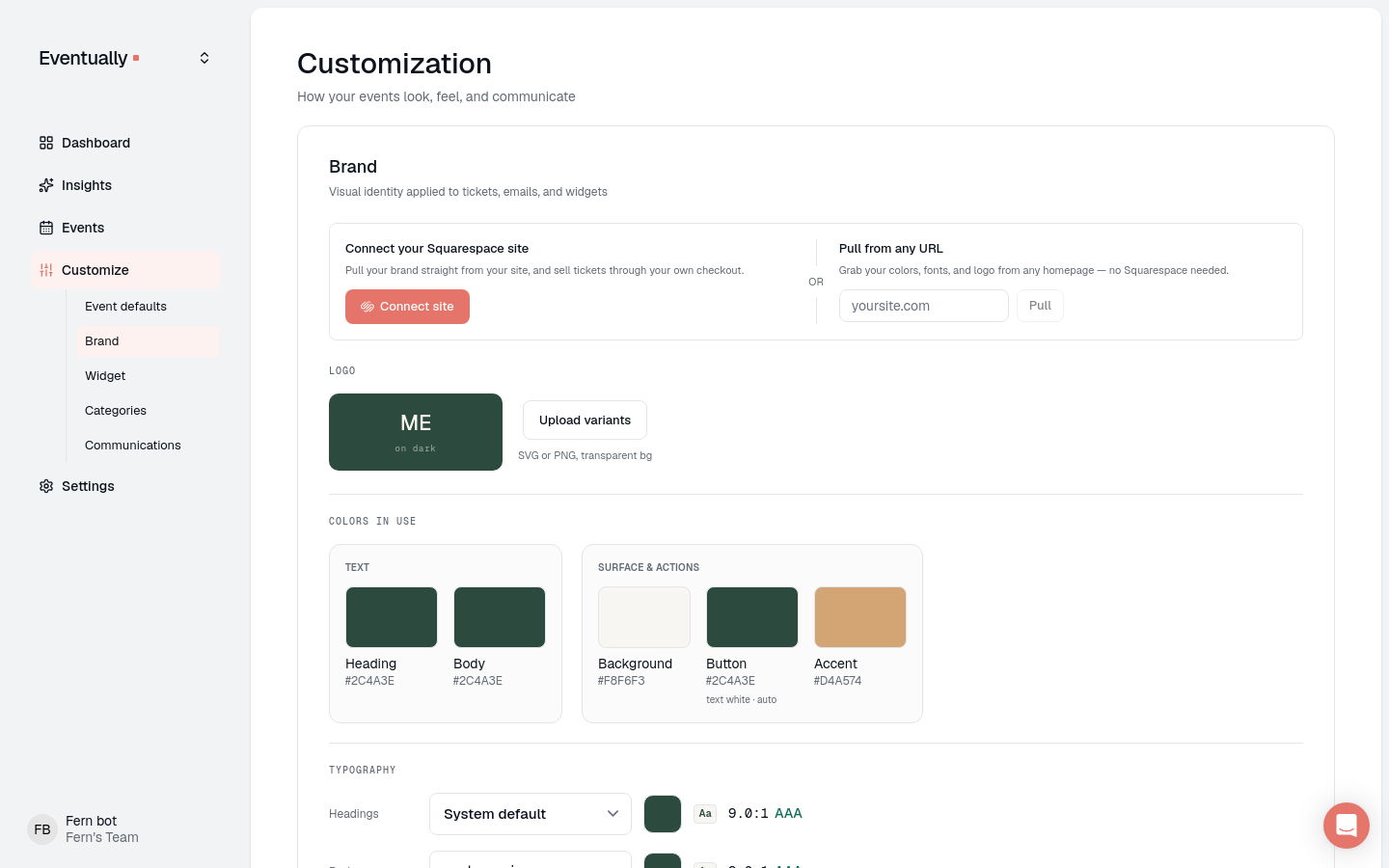
The legacy Brand page, shown when Global Styles is not enabled, groups your palette into five role-named slots: Text (Heading and Body) and Surface & actions (Background, Button, and Accent).
Click any color swatch to open the picker and enter a hex value. Changes are validated and saved as normalized hex colors.
Button text is automatic. The Button role shows a computed contrast label such as text near-black · auto or text white · auto. Button text color is set automatically to white or near-black based on the button background. You cannot set it manually.
Typography and text colors
Below the color swatches, the Typography section lets you set fonts and text colors for headings and body copy:
Headings: font family and Heading text color.
Body: font family and Body text color.
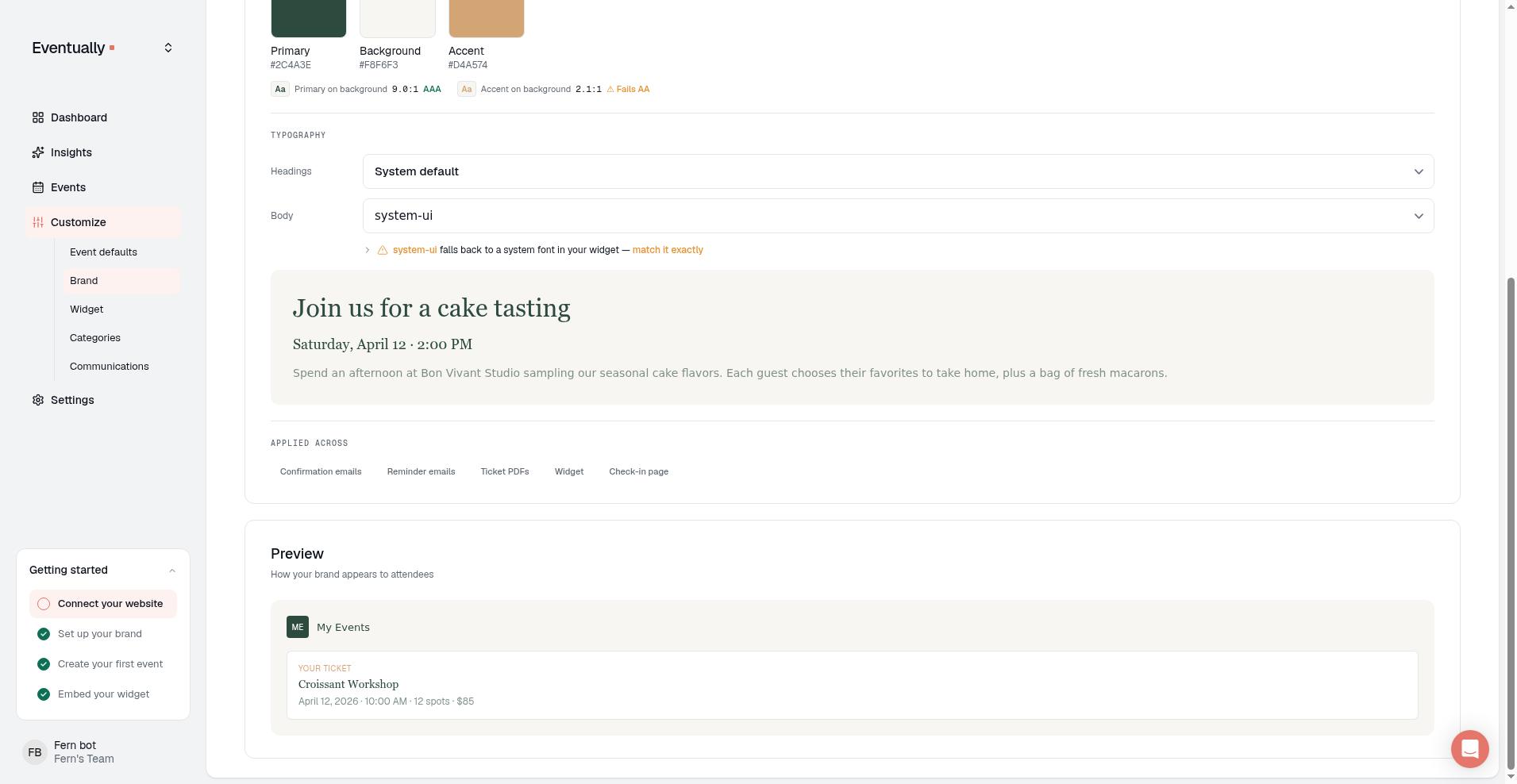
Each typography row shows a live WCAG contrast check against the background color. If the ratio falls below the WCAG AA threshold of 4.5:1, a warning appears with the measured ratio and a recommendation to adjust the color. The warning is advisory: you can still use the color you prefer, but low-contrast text may be harder for some visitors to read.
When heading or body text colors are not set, they fall back to the primary brand color so your text is never unstyled.
Fonts are inherited from your connected Squarespace site when possible. When brand sync captures matching web font files for the family the branded widget uses, we inject those @font-face rules into the branded widget automatically so the font can load inside the iframe. Built-in widget fonts (a curated set of Google Font families such as Poppins, Inter, Roboto, and Montserrat, plus web-safe faces) also render in the branded widget without custom CSS. Supported Google families are fetched inside the branded widget when selected and when brand sync did not already supply that family; web-safe fonts and Geist do not make that third-party request. The neutral widget preview before brand is applied does not load brand fonts. If a chosen font is outside the widget’s built-in set, a notice can still appear under that font with a copyable @font-face snippet. When brand sync has captured the font file from your site (including Adobe Fonts kits or Squarespace-hosted files), the snippet arrives with the real src URL already filled in and can be pasted as-is into Custom CSS in the Advanced group of Customize → Global Styles. If no match is found, the snippet contains a placeholder URL and you must point it at your own hosted font file. Use the snippet when the branded widget still falls back to a system font, or when you want an exact match through custom CSS. For how fonts load, when visitors’ browsers contact Google Fonts, and fallback behavior, see Matching your Squarespace fonts in the Eventually widget. You can also set custom font choices in the Fonts group of Customize → Global Styles to override the default typeface used in the widget and on event pages.
Style the view switcher and day headers
When Global Styles is enabled, a View switcher group styles the Calendar, List, and Card control and a List group styles the day headers. These groups are part of Global Styles and do not appear on the legacy Brand page.
The View switcher group offers Background, Selected, Label, Selected label, and Font settings for the Calendar, List, and Card control.
The List group offers color, Font, Size, Spacing, and Case settings for the day headers.
The Calendar Editor provides the same View switcher and Day headers controls on its canvas for an individual calendar, alongside per-calendar fallbacks such as Theme, Body font, and Date and time. Calendar Editor settings affect only that calendar; Global Styles settings apply site-wide.
Style search, sort, and filter controls and the header divider
The Search, sort and filter group styles the search field, the Sort and Filter buttons, and their menus. Its styling popover has Text, Outline color, and Fill color rows, and each row offers Readable, color swatches, and a Custom hex value. Set them in Customize → Global Styles to apply the shared setting site-wide, or in the Calendar Editor to style one calendar. You can also edit them from the settings rail on the Global Styles page: the Header group, between Details and View switcher, holds a Divider control with None, Subtle, and Strong options, plus a Search, sort and filter sub-label with Control text, Control outline, and Control fill color rows. Those rows use your palette and brand colors, accept a Custom hex value, and show the same Low contrast warning as the canvas when a picked color falls short. A rail row the shared standard has no value for reads Not set; the canvas popover shows the equivalent unset state as Readable. In the Calendar Editor, Search field, Sort button, Filter button, and Sort and filter menu are selectable styling regions that share one styling configuration.
Readable is the default on every live calendar, including calendars you have never customised: text targets a 4.5:1 contrast ratio, and control edges, focus rings, and the text caret target 3:1. When a manually picked color falls short, the editor shows a Low contrast notice with the measured ratio and keeps the color you picked instead of changing it. The notice applies to Text and Outline color picks; the Fill color you set is the surface your Text color is measured against.
The header styling popover has a Divider row with None, Subtle, and Strong choices. The default is a quiet 1px line, and it no longer follows the calendar Border size, so calendars using Border M or Border L no longer get a thicker default header rule. If you set your own header rule with Custom CSS, it is still honoured; see the Widget CSS selector reference.
In the Calendar Editor, the Sort and filter menu region becomes selectable after you open the Sort or Filter menu, and an open menu stays available while you style it. To return a setting to the shared standard, use the Use Global Styles actions in the Calendar Editor.
Assign pulled palette colors
If you have pulled colors from your Squarespace site or another URL, the Pulled from your site palette appears below the color settings. Click any pulled color to assign it to one of the five roles. A checkmark appears next to roles that are already filled. The helper text reads: Click a color to use it as one of your brand colors.
Where brand settings apply
Hosted public event page: Logo above the event card; brand name in page titles and emails; accent colors on buttons.
Calendar widget: Logo, colors, and fonts inside the embed on your Squarespace site.
Automated emails: Logo and brand name in confirmation and reminder messages.
Related guides
Syncing your brand from Squarespace: Import colors, fonts, and logo automatically
Matching your Squarespace fonts in the Eventually widget: How automatic brand font loading works, and when to paste a manual @font-face snippet
Domain verification is no longer required for branding: Branding works as soon as your site is connected
What attendees see when they register: See how branding appears on the public event page
Eventually dashboard is always light mode: The app interface always uses light mode, independent of your device or widget settings