
Syncing your brand from Squarespace
Eventually can pull your Squarespace site’s logo, colors, and fonts onto your calendar widget, hosted public event page, and emails. Sync during post-publish setup on the dashboard drawer or Set up your widget, or any time from Customize → Brand.
Sync after first publish
After you first publish, Eventually opens brand setup so you can style the widget before you embed it. First-run single publish stays on the dashboard setup drawer; bulk publish, CSV first publish, demo mode, and already-finished onboarding open the standalone Set up your widget page instead.
On the brand step, find the brand prompt: Want it to look like you before it goes on your site? Paste your site and we’ll pull your brand.
Enter your site URL in the field (placeholder:
https://yoursite.com).Click Sync my brand. While we read the site, the button shows Reading your site….
On success, the heading changes to This is your widget, matched to your brand, and the live preview updates from a neutral widget to your pulled logo, colors, and fonts. Click Looks right to continue, or Not your brand? Try a different URL to sync from another address. When brand sync captures matching web font files for the family the widget uses, those fonts load automatically inside the widget iframe. A Custom CSS snippet, pasted into Custom CSS in the Advanced group of Customize → Global Styles, is a fallback for fonts that don't match or that you add manually. A successful sync also completes the brand step in dashboard setup.
If the sync fails, the page shows We couldn't read that site. Try again, or keep the default look. Use Try again to retry. If you hit the rate limit, you see Too many sync attempts — give it a minute and try again. A warning with no brand data does not complete the brand setup step.
Skip brand sync and keep the default look
If you want the embed code right away and are fine with the default styling for now, click I'm happy with the default look — take me to the embed code.
Skip completes the brand setup step without pulling Squarespace branding. You can still sync later from the dashboard drawer, Set up your widget, or from Customize → Brand. A failed re-sync later does not undo a skip; a successful later pull clears the skip and applies your site brand.
What gets synced
When you trigger a brand sync, we import:
Logo: Your Squarespace site logo is uploaded to your brand settings and appears on the hosted public event page, in the calendar widget, and in emails.
Colors: Accent colors from your Squarespace palette are applied to the Background, Button, and Accent roles in your brand settings.
Fonts: Typeface choices from your site are inherited by the widget and public event page. We also capture the site’s @font-face rules (family, hosted file URL, and weight) from Squarespace-hosted fonts and Adobe Fonts kits. Matching synced faces load automatically inside the widget iframe. A Custom CSS snippet, pasted into Custom CSS in the Advanced group of Customize → Global Styles, is the fallback for unmatched or manually added fonts. The Brand page can still generate a paste-ready @font-face snippet when a font is outside the widget’s built-in set or still needs an exact match through custom CSS. The neutral widget preview (before brand sync, or ?brand=off) omits brand fonts and other branded styling.
Heading and body text colors are not synced from Squarespace. Set them manually in Customize → Brand so a sync never overwrites your custom text-color choices.
How to sync from Customize → Brand
You can sync or re-sync at any time from Customize → Brand in your Eventually dashboard. If Global Styles is enabled, the entry appears as Global Styles instead.
Not connected
If you have not connected a Squarespace site, the brand source chooser shows two options:
Connect your Squarespace site: Click Connect site to open Settings → Payments, where you connect your Squarespace site before syncing brand assets.
Pull from any URL: Enter a site URL and click Pull to fetch its palette without a full Squarespace connection.
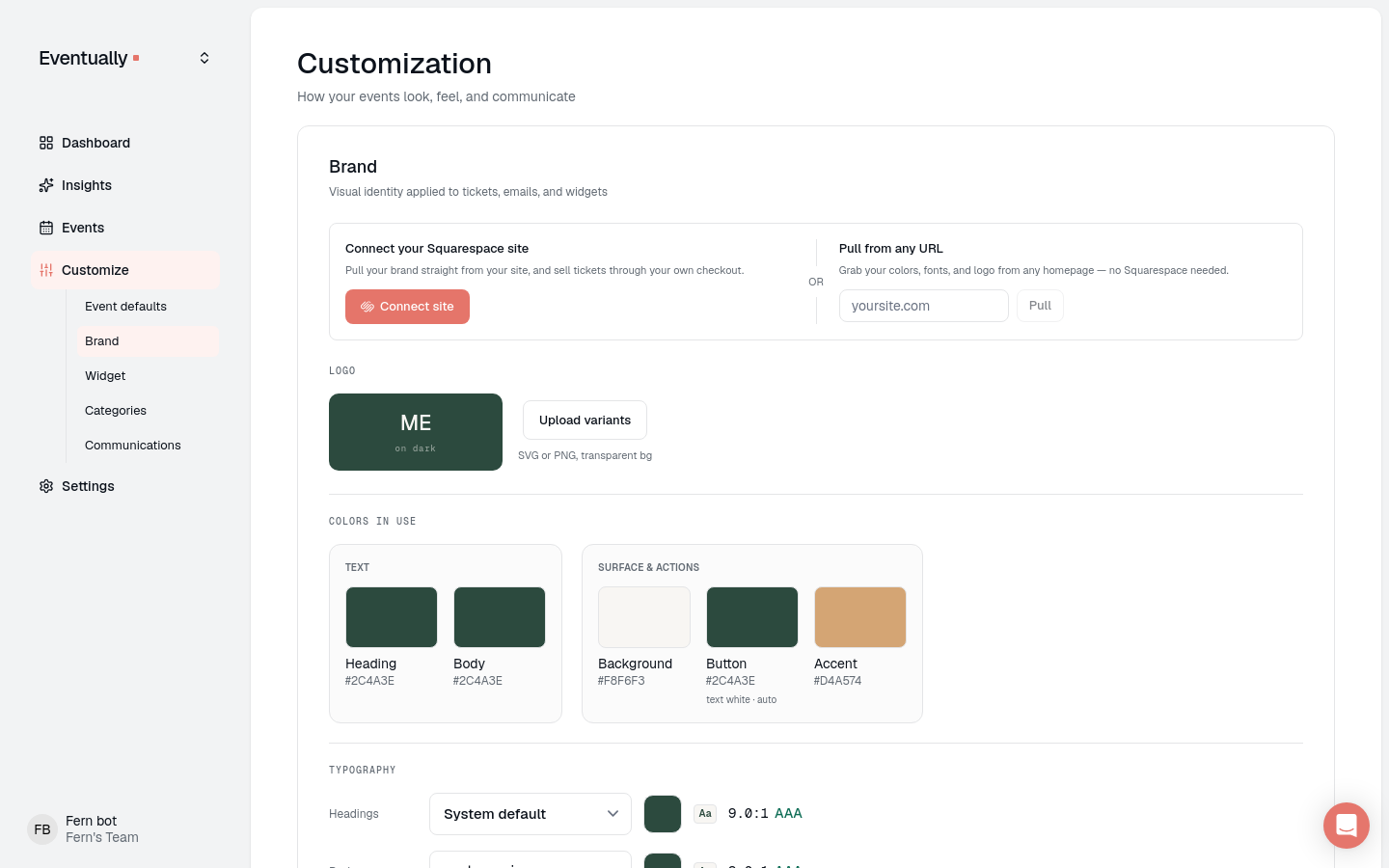
Connected
Once your site is connected, the chooser is replaced by a Sync from site action on the Brand page; with Global Styles enabled, the control is Re-sync on the Global Styles surface. Click it to re-import the latest logo, colors, and fonts from your Squarespace site. Review the imported values and adjust any that you want to override manually.
Password-protected Squarespace sites
If your Squarespace site is password-protected, the sync may not be able to fetch your assets automatically. Enter your site password on the Brand page and click Retry with password. On Global Styles, enter it in the Site password field under the sync line and click Try again. You don't need to disable the site password first. Alternatively, upload your logo and set colors manually in Customize → Brand.
Overriding synced values
After syncing, you can change any brand setting in Eventually without affecting your Squarespace site. Manually set values in Customize → Brand take priority over synced values.
Heading and body text colors are always manual-only. Even after a sync, set them yourself in the Typography section of Customize → Brand.
Get started with Eventually: Value-first setup from first event to embed
Finish setup on your dashboard: Dashboard drawer and panel steps, including brand sync or skip after first publish
Brand settings: colors, logo, and fonts: Fine-tune logo, colors, and fonts after syncing
Matching your Squarespace fonts in the Eventually widget: How automatic brand font loading works, and when to paste a manual @font-face snippet
Domain verification is no longer required for branding: How branding works after connecting your site
What attendees see when they register: See how the synced logo appears on the public event page