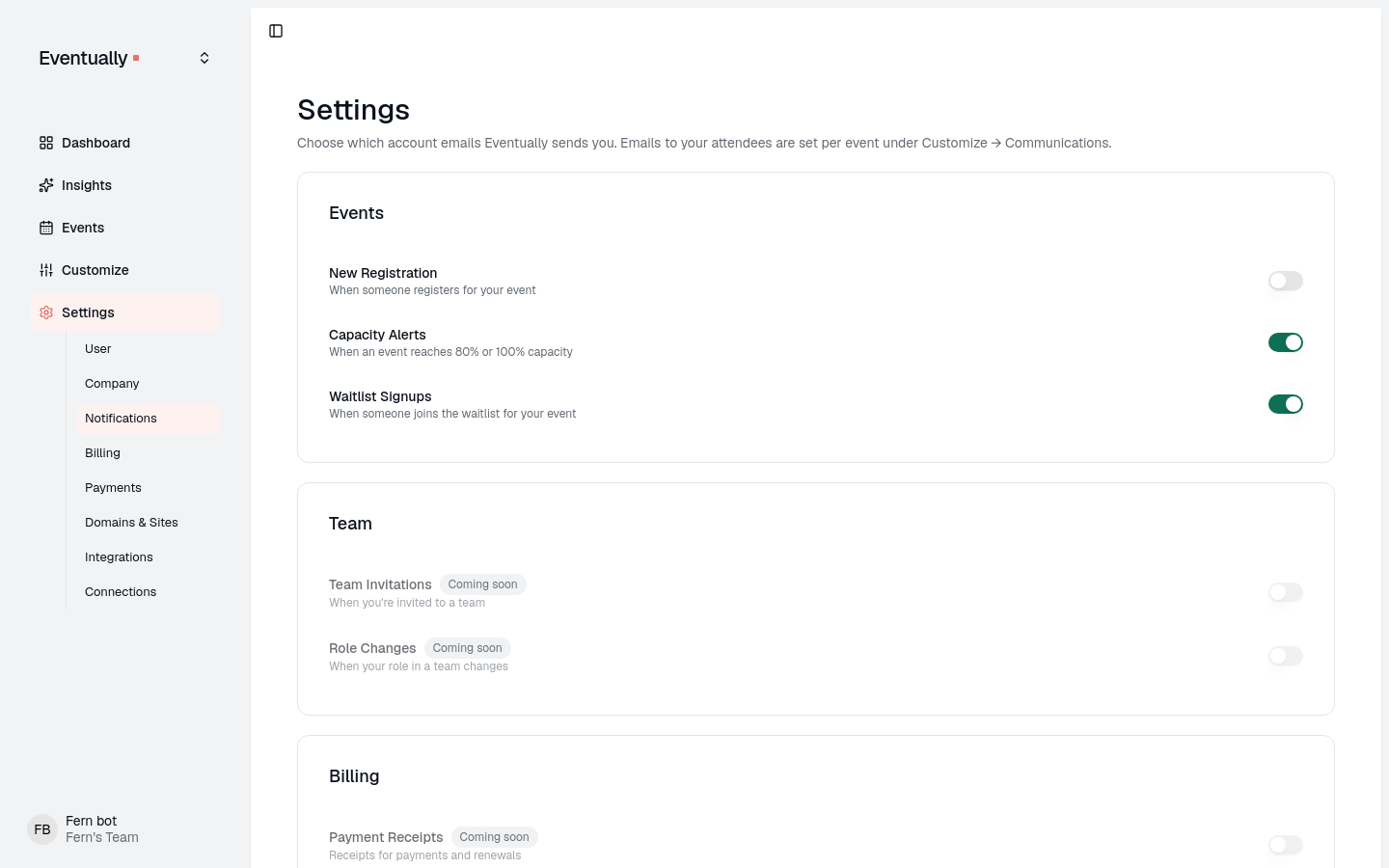
Notification preferences
Event hosts can receive branded email alerts when someone registers for an event, when an event reaches capacity thresholds, and when an email to your guests fails to be delivered. Open Settings > Notifications to enable these alerts and manage team notification preferences.
Open notification settings
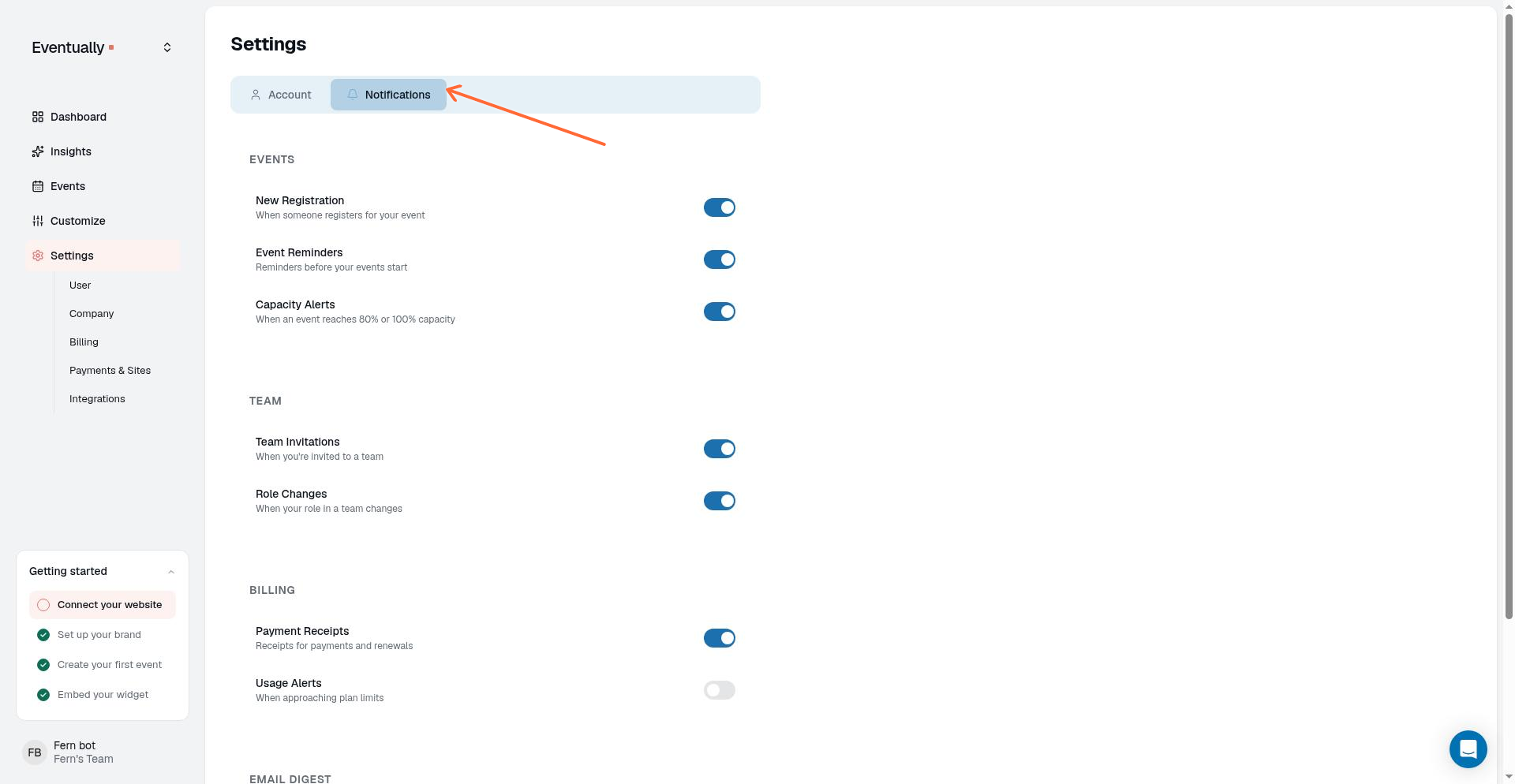
Notification controls are in the Notifications tab of your account settings.
In the Eventually dashboard, go to Settings.
Select the Notifications tab.
The page shows sections for Events, Team, and Billing. The Billing section's Payment Receipts and Usage Alerts controls are marked Coming soon and do not send email yet.
Event host alerts
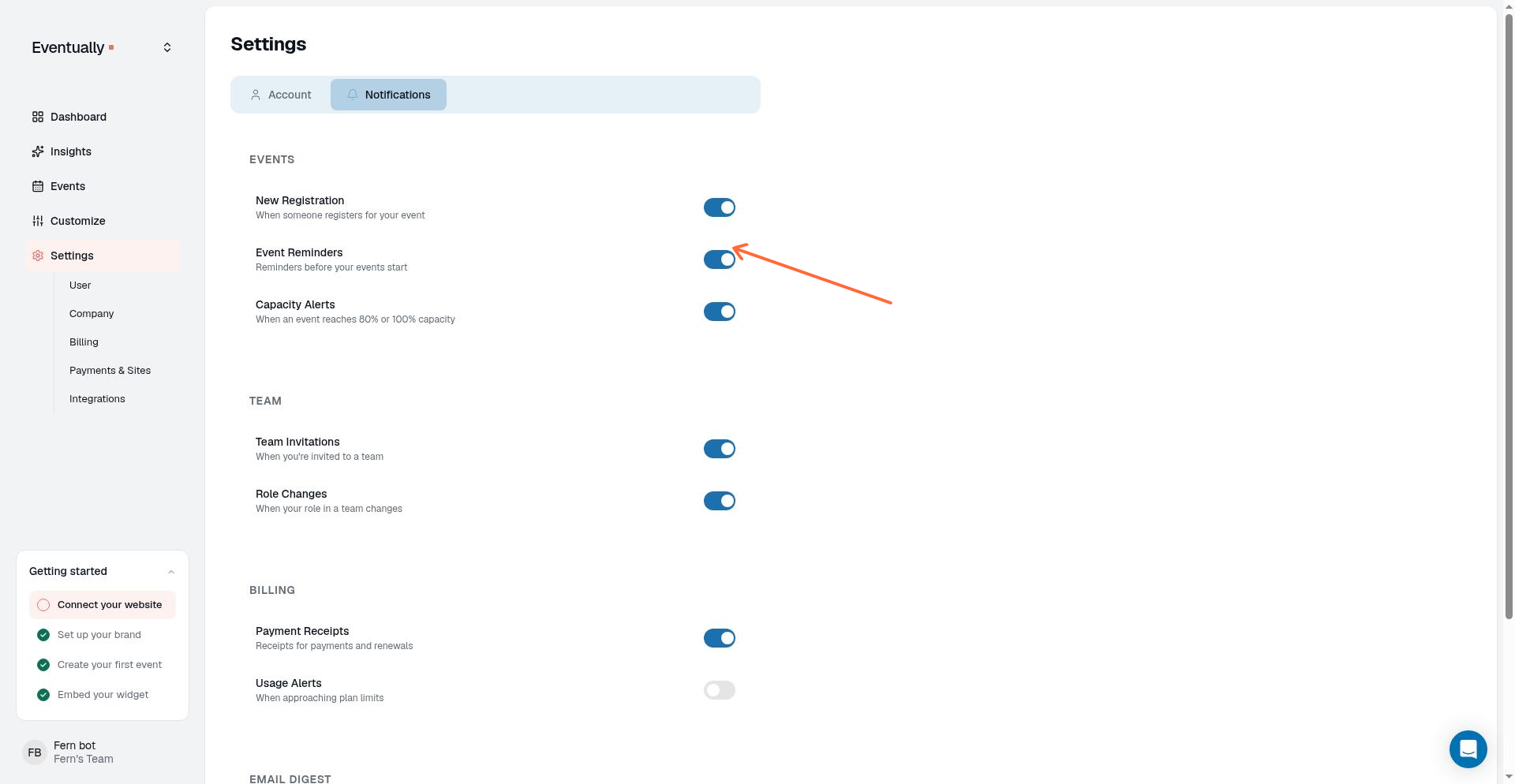
Under the Events section, enable the host alerts you want to receive.
New Registration: Receive an email when someone registers for one of your events. This preference also controls over-capacity notices for paid Squarespace orders that arrive after an event fills. See When a paid Squarespace order exceeds capacity.
Capacity Alerts: Receive an email when an event reaches 80% capacity or sells out.
Waitlist Signups: Receive an email when someone joins the waitlist for your event.
Store Page Turned Off: Receive an email when the store page that holds your ticket products is turned off and tickets cannot be added to the cart. This preference is on by default for each team member. Turning it off stops the email for that member, but the in-app banner about the turned-off page still appears for every team member.
Undelivered Emails: Receive an email when an email to your guests bounces or is marked as spam. You get one digest per failed send, about 10 minutes after the first failure, listing up to 10 guests and their failure reasons; when more guests failed, the email points you to the event page. This setting appears once sent email history is enabled for your team. See View sent emails and delivery status.
Each team member sets these alerts independently in their own notification settings, and all five are on by default. The Waitlist Signups alert reports who joined the waitlist and the current number of people waiting.
What capacity alert emails tell you
Capacity alerts are sent at two thresholds: 80% capacity and sold out. The email you receive reflects the live ticket count at the time it is sent, so the subject, headline, and progress bar all show the same current percentage.
The count behind an alert covers every confirmed active seat in the event, including complimentary and host-added guests. Incomplete checkout holds do not count toward the threshold. Any workflow that changes the seat count can trigger an alert when it crosses a threshold, including checkout, Squarespace sync, manual adds, attendee moves, refunds, cancellations, and capacity edits. An alert can send again after the event drops below a threshold and later reaches it again, but sales that keep the event above a threshold do not send another alert.
If an event reaches 80% capacity without selling out, the subject reads "Event Title is 80% full" and the body says "Your event is 80% full and filling up."
If a single sale jumps the event straight to sold out, you receive only the sold-out alert. The 80% alert is not sent in this case. The subject reads "Event Title is sold out" and the body says "Your event is sold out."
If an event crosses 80% first and sells out later, you receive both alerts separately: one at 80% and another when it sells out.
The email includes a progress bar that shows the current sold percentage and a View event button to open the event in your dashboard.
Team notifications
The Team section shows the Team Invitations and Role Changes controls, but both are currently unavailable and marked Coming soon. They are not wired to send team-wide emails yet.
Team Invitations: Will send you an email when you're invited to a team, once the feature ships.
Role Changes: Will send you an email when your role in a team changes, once the feature ships.