
Connect Klaviyo
Eventually connects to Klaviyo to sync attendee profiles and registration events automatically. This lets you trigger email flows, segment your audience, and measure campaign performance based on real event activity.
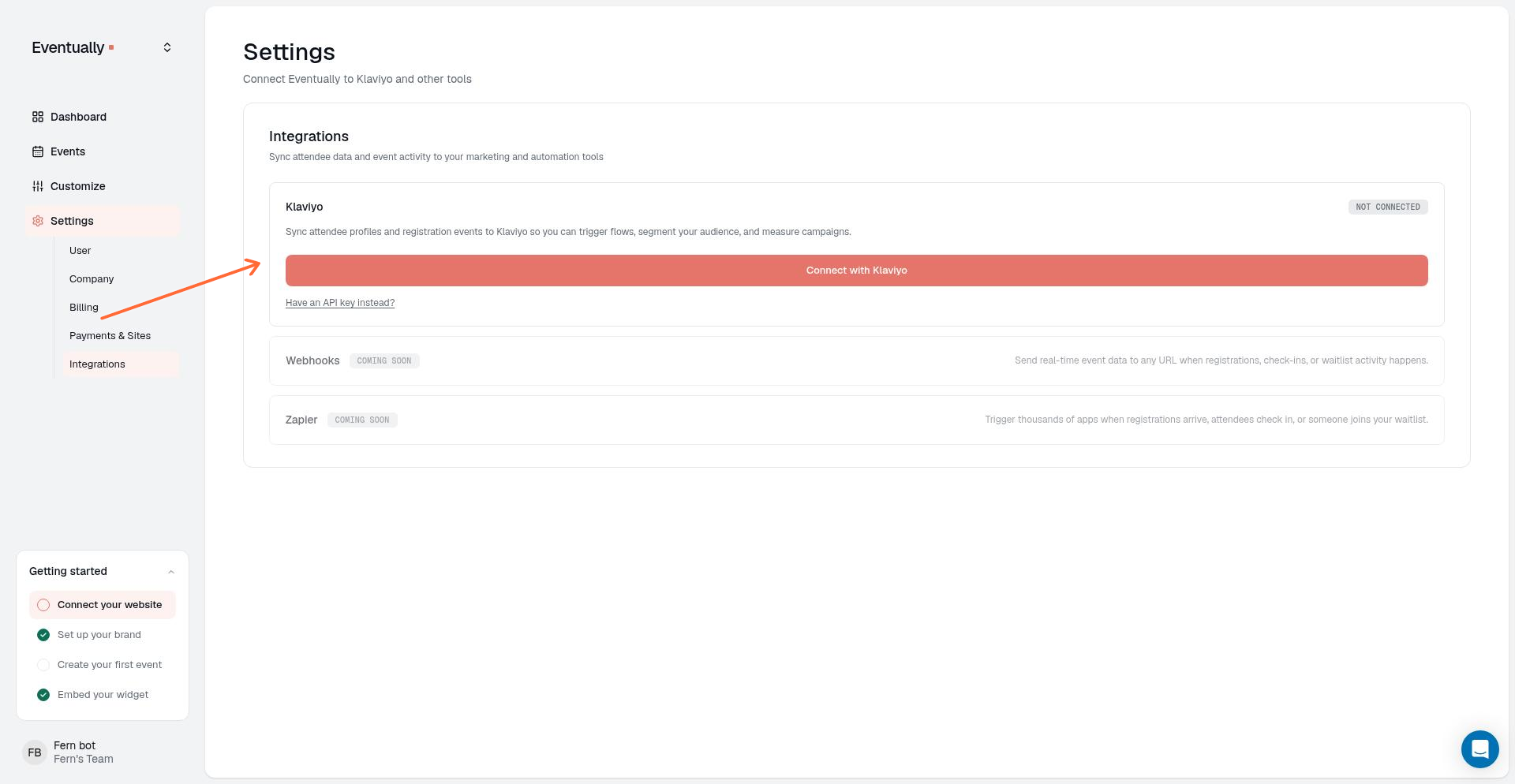
Find Klaviyo under Settings → Integrations. Click Connect with Klaviyo to start.
Before you start
You'll need a Klaviyo account. If you use Klaviyo's OAuth flow, you can connect directly from Eventually. If you prefer to use a private API key, generate one in your Klaviyo account settings first.
You need an Owner or Admin role on your Eventually team to connect, change, or disconnect Klaviyo.
Klaviyo is available on the Growth plan and above. Free and Essentials plans don't include it. If you don't see the integration options described here, you may need to upgrade your plan. See Understanding your plan and feature access to learn which features are included in each plan.
Connect Klaviyo
Go to Settings in your Eventually dashboard.
Select Integrations.
Find the Klaviyo card.
Choose your connection method:
Connect with Klaviyo: Use OAuth for the fastest setup. You'll sign in to Klaviyo and authorize Eventually.
Have an API key instead?: Toggle this option if you have a Klaviyo private API key. Enter your key (starts with
pk_), then click Test connection to verify, and Connect to save.
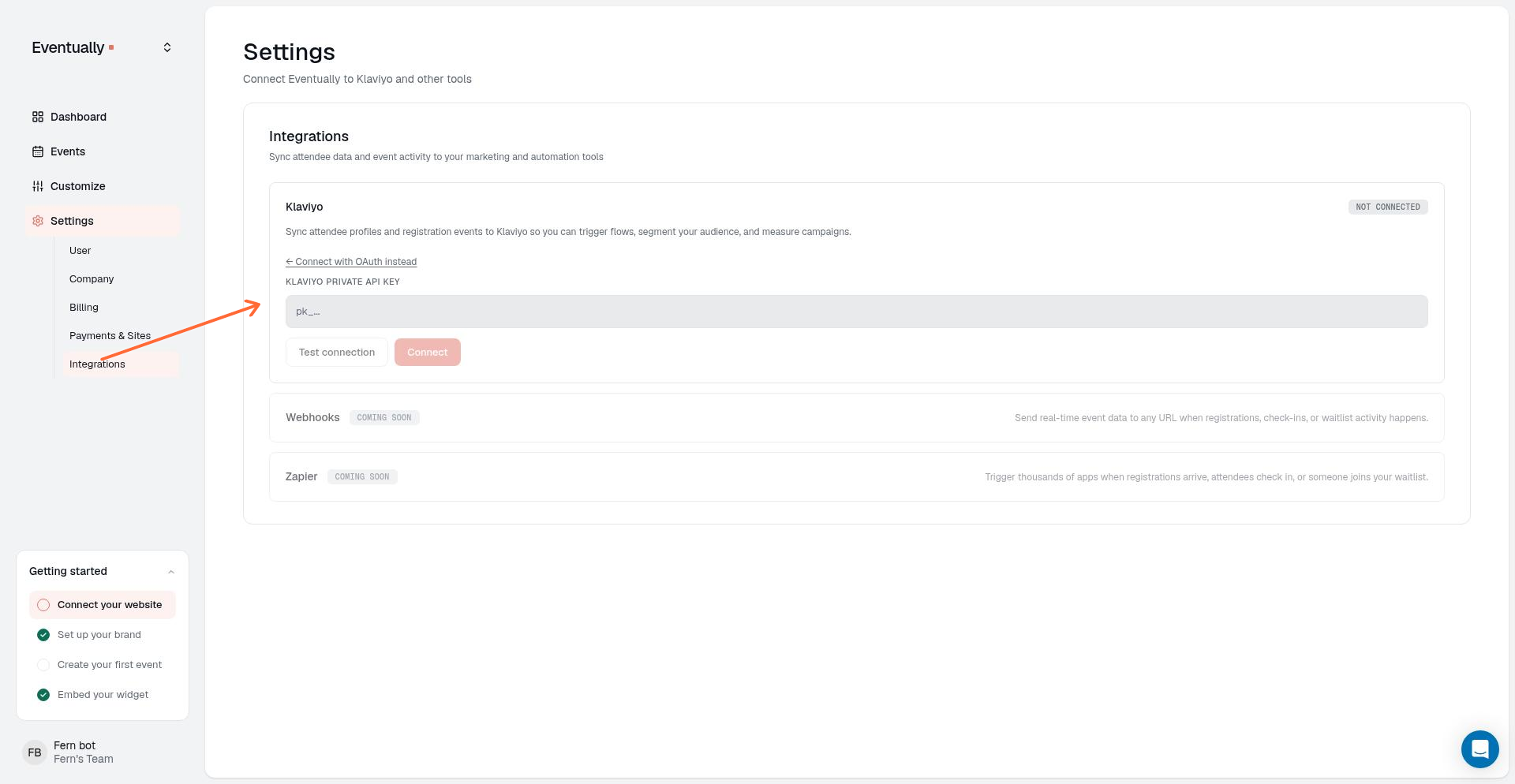
Prefer using an API key? Click "Have an API key instead?" to enter your Klaviyo private key.
Once connected, the integration shows your Klaviyo account ID and a status badge: CONNECTED for API-key connections or CONNECTED VIA OAUTH for OAuth connections.
Configure what to sync
After connecting, choose which events Eventually sends to Klaviyo. These appear under Sync these events:
New registration: Triggered when someone registers for an event. Sent to Klaviyo as Registered for Event.
Attendee info completed: Triggered when an attendee finishes filling out their registration details. Sent to Klaviyo as Registration Updated.
Registration cancelled: Triggered when a registration is cancelled. Sent to Klaviyo as Cancelled.
Registration refunded: Triggered when a registration is refunded. Sent to Klaviyo as Refunded.
Attendee checked in: Triggered when someone checks in at your event. Sent to Klaviyo as Checked In.
Joined waitlist: Triggered when someone joins an event's waitlist. Sent to Klaviyo as Joined Waitlist.
Waitlist spot offered: Sent to Klaviyo as Received Waitlist Offer.
Waitlist spot accepted: Sent to Klaviyo as Accepted Waitlist Offer.
Waitlist offer expired: Sent to Klaviyo as Waitlist Offer Expired.
Registration moved: Sent to Klaviyo as Registration Moved.
Registration exchanged: Sent to Klaviyo as Registration Exchanged.
Registration transferred: Sent to Klaviyo as Registration Transferred.
Enable the events you want to track in Klaviyo. You can use these events to trigger flows, build segments, and report on campaign performance.
The checkboxes control which event activity Eventually sends. Klaviyo receives each event under a metric name set by Eventually, shown after the checkbox label above.
If you built Klaviyo flows or segments on the previous raw event names, such as waitlist.offered, they stay attached to those old metrics and stop receiving new activity. Follow the migration steps below to point them at the new metrics.
Update Klaviyo flows for the new event names
Flows and segments built on the previous technical event names keep running against those old metrics, which no longer receive new activity. Replace the old name with the matching metric below to keep the automation running.
Previous event name | New Klaviyo metric |
|---|---|
| Received Waitlist Offer |
| Accepted Waitlist Offer |
| Waitlist Offer Expired |
| Registration Moved |
| Registration Exchanged |
| Registration Transferred |
Update a flow
In Klaviyo, review your flows and note any that use one of the previous event names above as a trigger.
Edit the flow and replace the trigger metric with the matching new name from the table.
Check the flow conditions and any Klaviyo segments that reference the old name, and point them at the new metric too.
Test the flow by performing the matching action in Eventually, such as offering or accepting a waitlist spot, and confirm the event arrives in Klaviyo under the new name.
Turn the flow back on once you have confirmed the new trigger works.
What happens to your existing data
Klaviyo does not merge old and new metrics. The previous metrics and all of their historical activity stay in your Klaviyo account, so reports built on them keep their history. Eventually does not delete, merge, or replay old metrics.
The rename affects only these six metric names. Attendee profiles keep syncing as before, and the new events land on the same profiles.
Add attendees to a Klaviyo list
To subscribe attendees to a Klaviyo list, use the Subscribe consenting attendees to dropdown. Select the list you want to use, or choose the No list (skip subscribe) option if you only want event tracking without list subscription.
This setting only adds attendees who consent to marketing emails, so you must enable the marketing opt-in checkbox on your registration forms.
Show a marketing opt-in on registration
Eventually can collect marketing consent during registration. Enable Show marketing opt-in checkbox on registration forms. Attendees who check this box are eligible for Klaviyo list subscription.
Customize the checkbox text in the label field. The default message is "I'd like to receive marketing emails". Edit this to match your brand voice.
Sync events to your Klaviyo catalog
Enable catalog sync to send your published events to Klaviyo so they can be used in product-style email content and targeting.
Turn on catalog sync
Go to Settings → Integrations.
Find the Klaviyo card.
Turn on Sync events to catalog.
The first time you enable this, a one-time backfill sends all current published events with a future start time to Klaviyo. Draft, cancelled, and past events are not included.
Hide sold-out and closed events from newsletters
Turn on Hide sold-out & closed events from newsletters to stop events from appearing in Klaviyo product blocks once they are no longer available to buy. This option is off by default and only appears after you enable Sync events to catalog.
Go to Settings → Integrations.
Find the Klaviyo card.
Turn on Hide sold-out & closed events from newsletters.
Once an event sells out or its sales close, it drops out of the catalog feed within a few minutes. The event is not deleted from Klaviyo. It is marked unpublished, so existing campaign links do not break.
This setting only affects events sold through Eventually. Calendar-only events and events that use external registration remain visible in your catalog even after they are no longer available to buy.
How event titles appear in Klaviyo
Each synced event's catalog item title includes the event date automatically, so standard Klaviyo product blocks display it without any custom coding.
The title format is: Event Name - Weekday, Month Day
For example, an event titled Community Cake Night that starts on Thursday, June 26 will appear in Klaviyo as Community Cake Night - Thursday, June 26.
The date uses the event's own timezone.
The year is not included.
If the event has no start date, the title shows only the event name.
Klaviyo's standard product block renders only the catalog item title, price, and button. It cannot read custom metadata fields. By placing the date directly in the title, your newsletters show the event date without requiring a custom-coded HTML block or manual typing for each campaign.
Custom metadata for advanced blocks
If you build custom-coded HTML blocks in Klaviyo, the following metadata fields are still synced for each event and can be referenced directly:
Event date and event end date
Venue and city for in-person and hybrid events (omitted for virtual events), and whether the event is online
Spots remaining and capacity
Categories and tags
Categories and tags appear as separate Klaviyo catalog categories with cat_ and tag_ prefixes, so you can filter by them when building campaigns.
Use synced data in Klaviyo
Use the synced event data to build targeted campaigns and populate product-style email blocks in Klaviyo. Filter by event categories or tags to reach the right audience for each event type.
If you are using standard Klaviyo product blocks, the event date now appears automatically in the block title. If you need the full date, time, timezone, or other metadata in a custom layout, use a custom-coded HTML block and reference the synced metadata fields.
Disconnect Klaviyo
To remove the integration, click Disconnect on the Klaviyo card. You'll see a confirmation message: "Disconnect Klaviyo? Future events won't sync." Confirm to disconnect. Existing synced data remains in Klaviyo, but new events will no longer be sent.
Other integrations
The Integrations page also shows Webhooks and Zapier. Webhooks are available on the Growth plan and above. See Set up outbound webhooks to configure an endpoint. Zapier is still marked as Coming soon; check back for updates or contact support if you need early access.